Module 3 Formstorming

Weekly Activity Template

Yvy Ong - My journey connecting physical touch with a P5.js digital visualization to create a unified and integrated design


Project 3


Module 3

My exploration for activity 1 and 2 that helped developed my final project

Activity 1
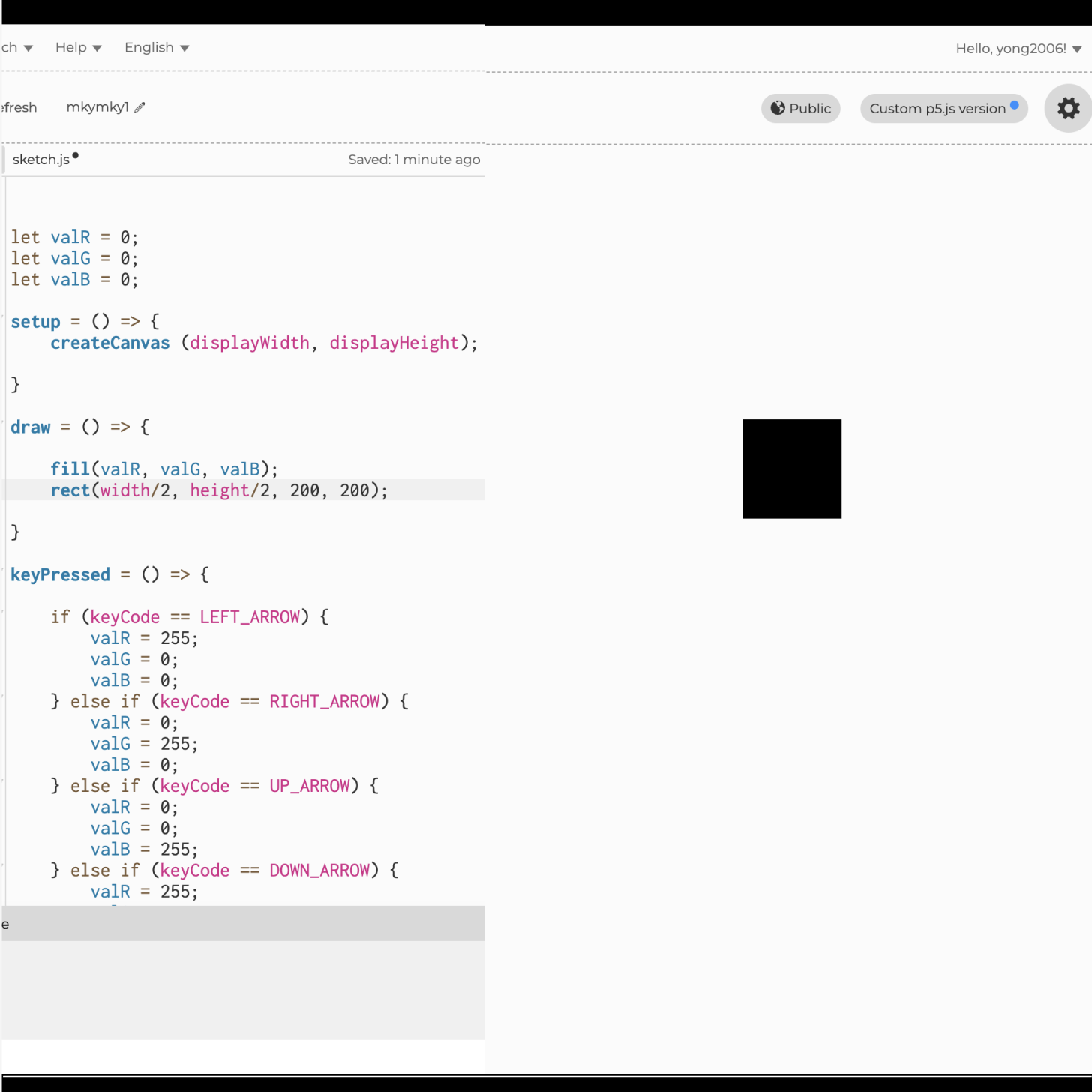
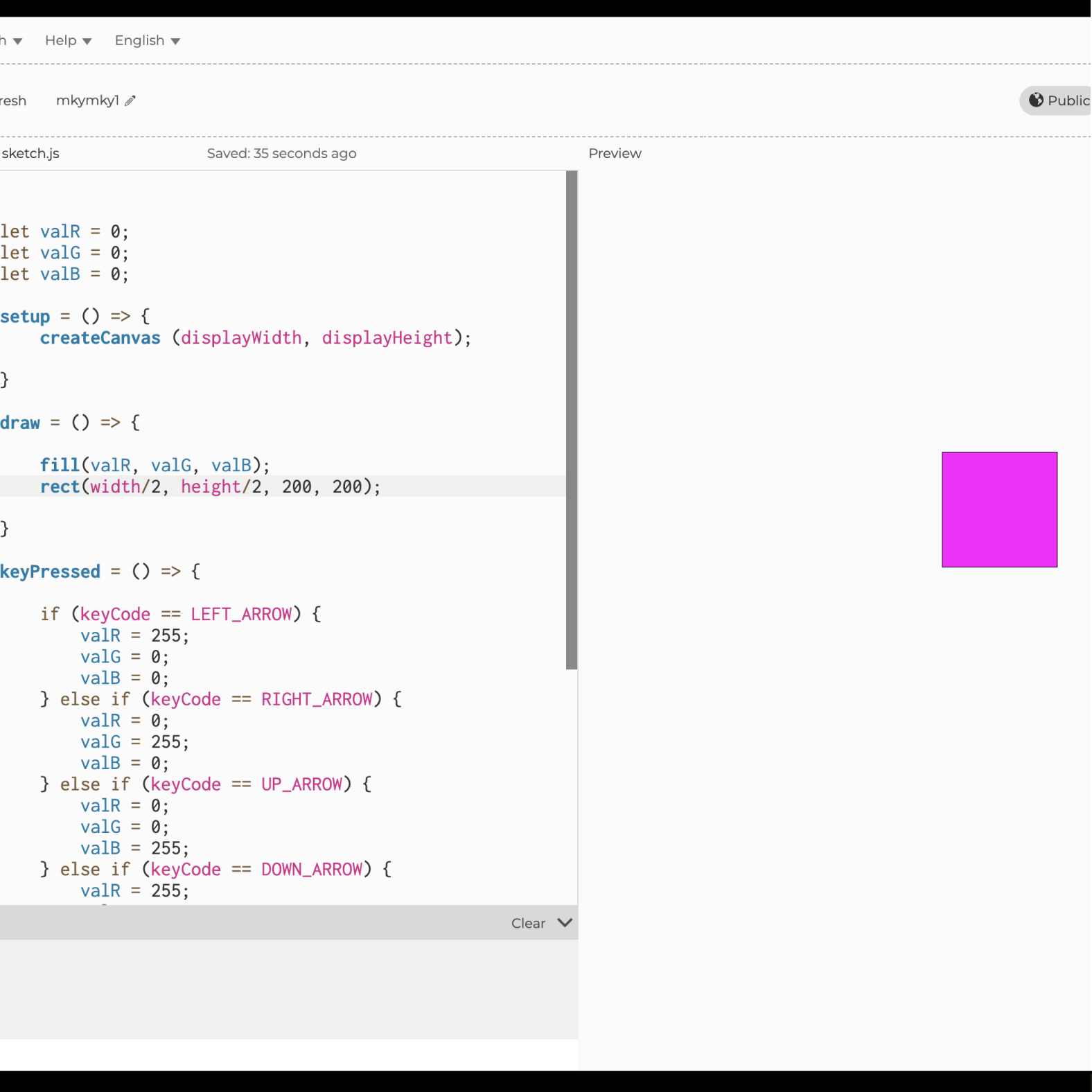
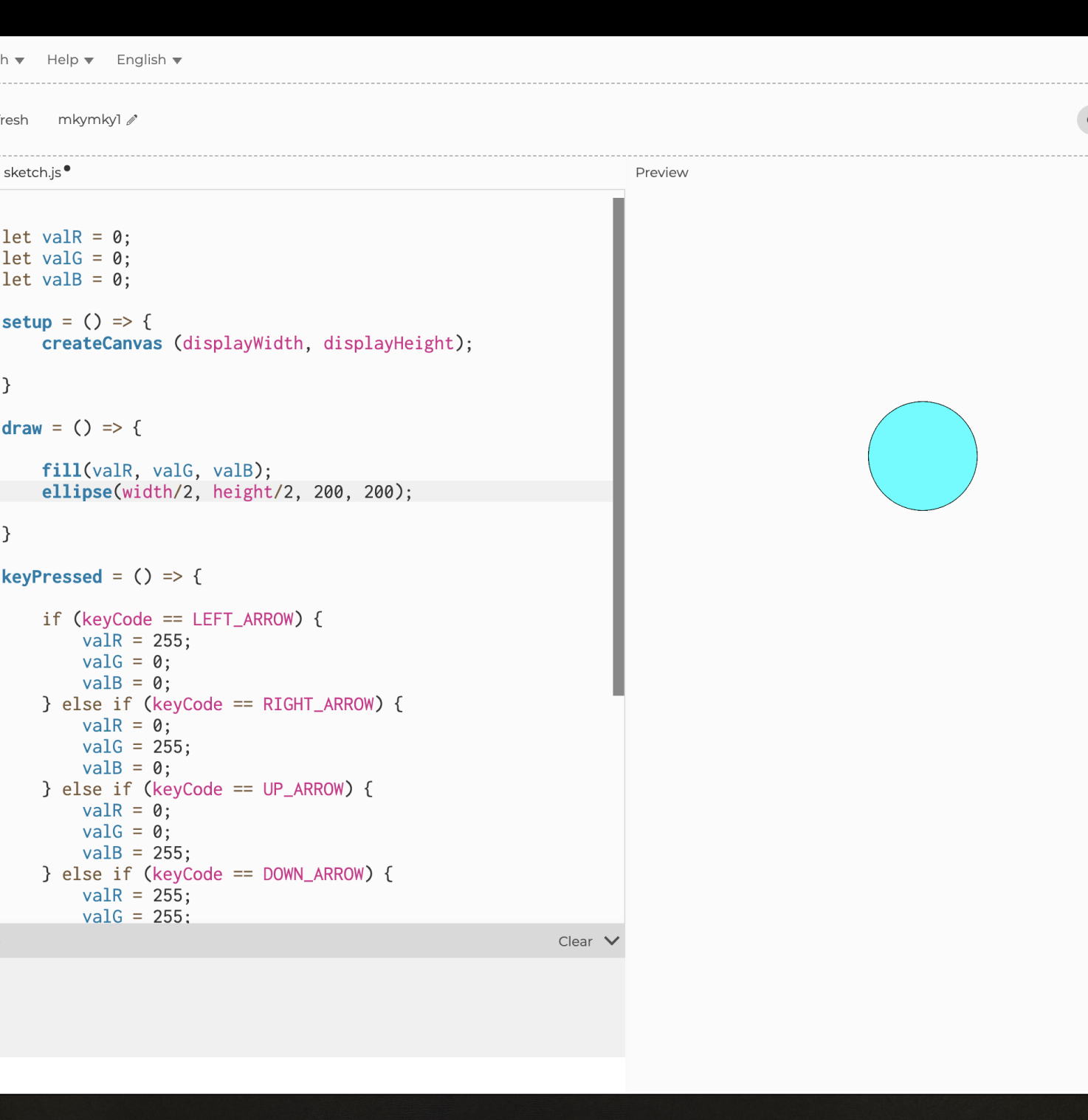
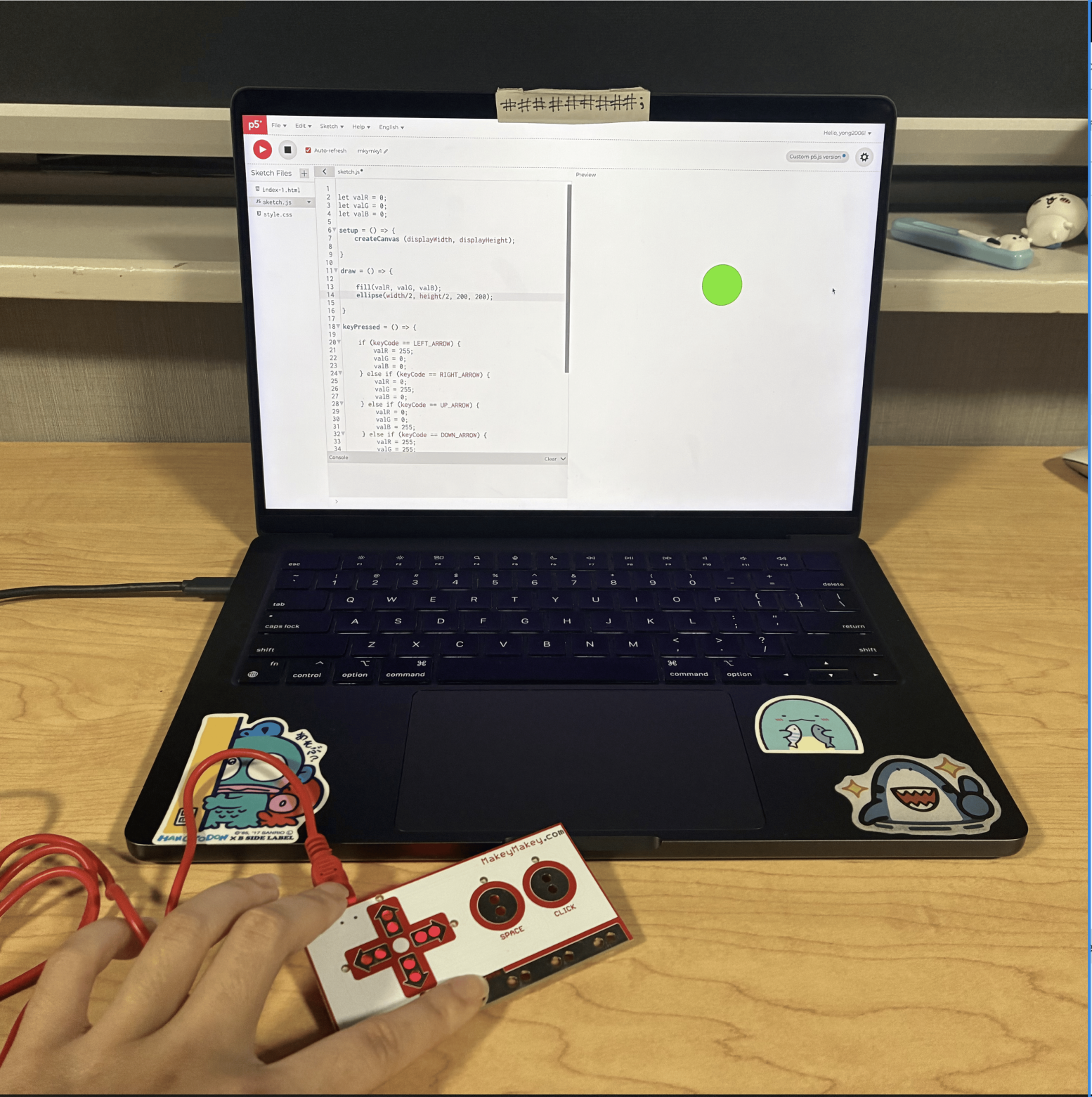
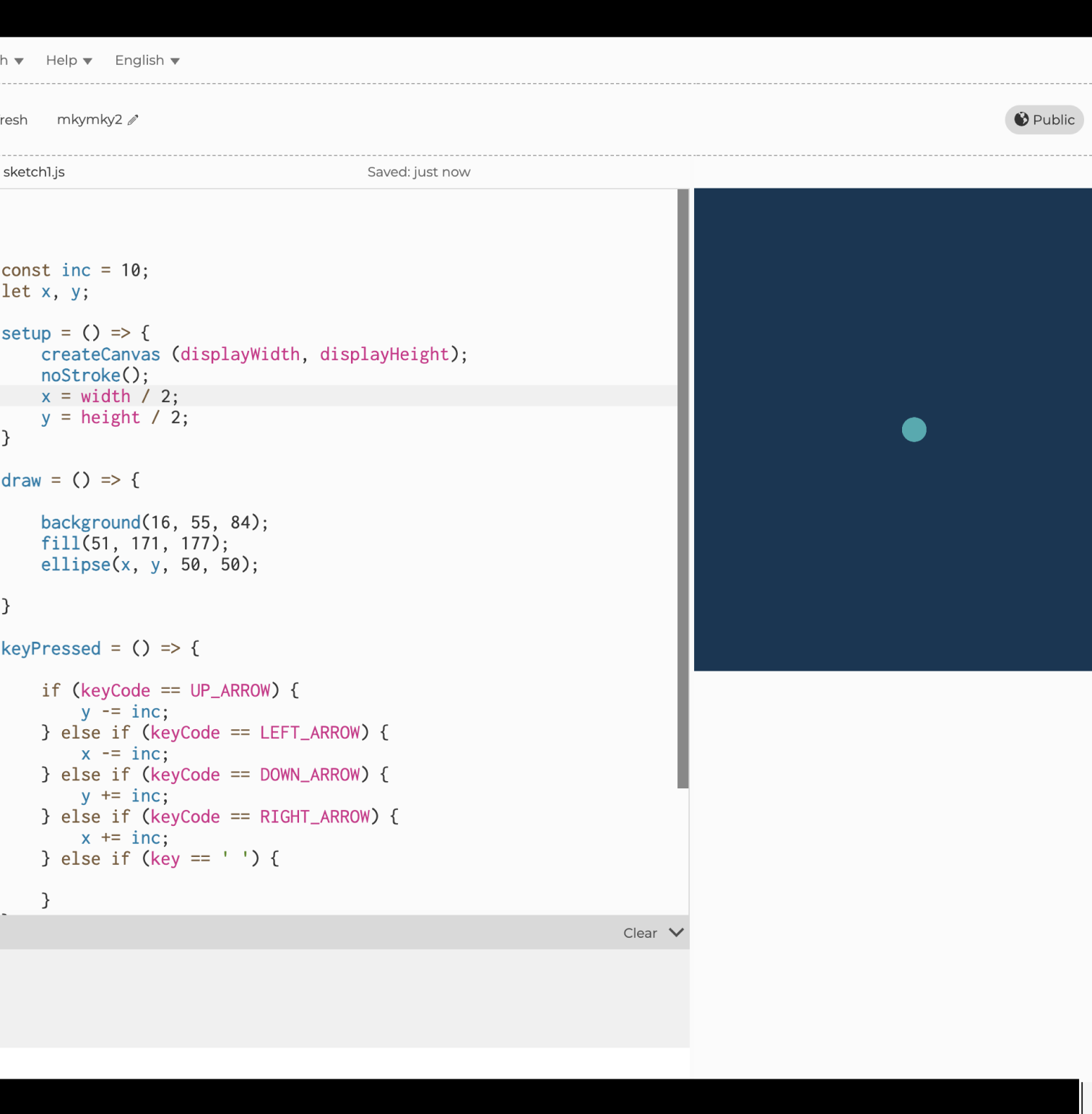
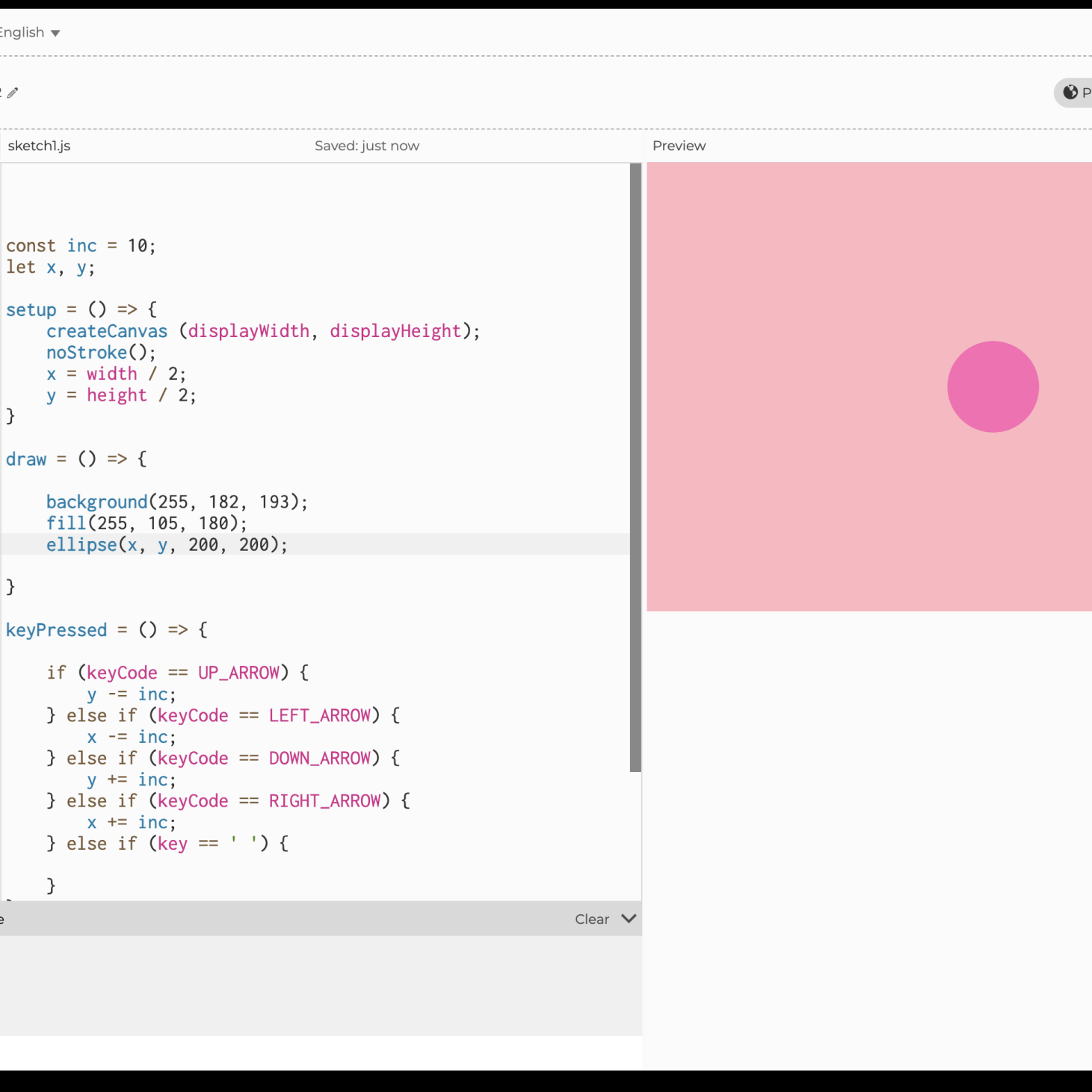
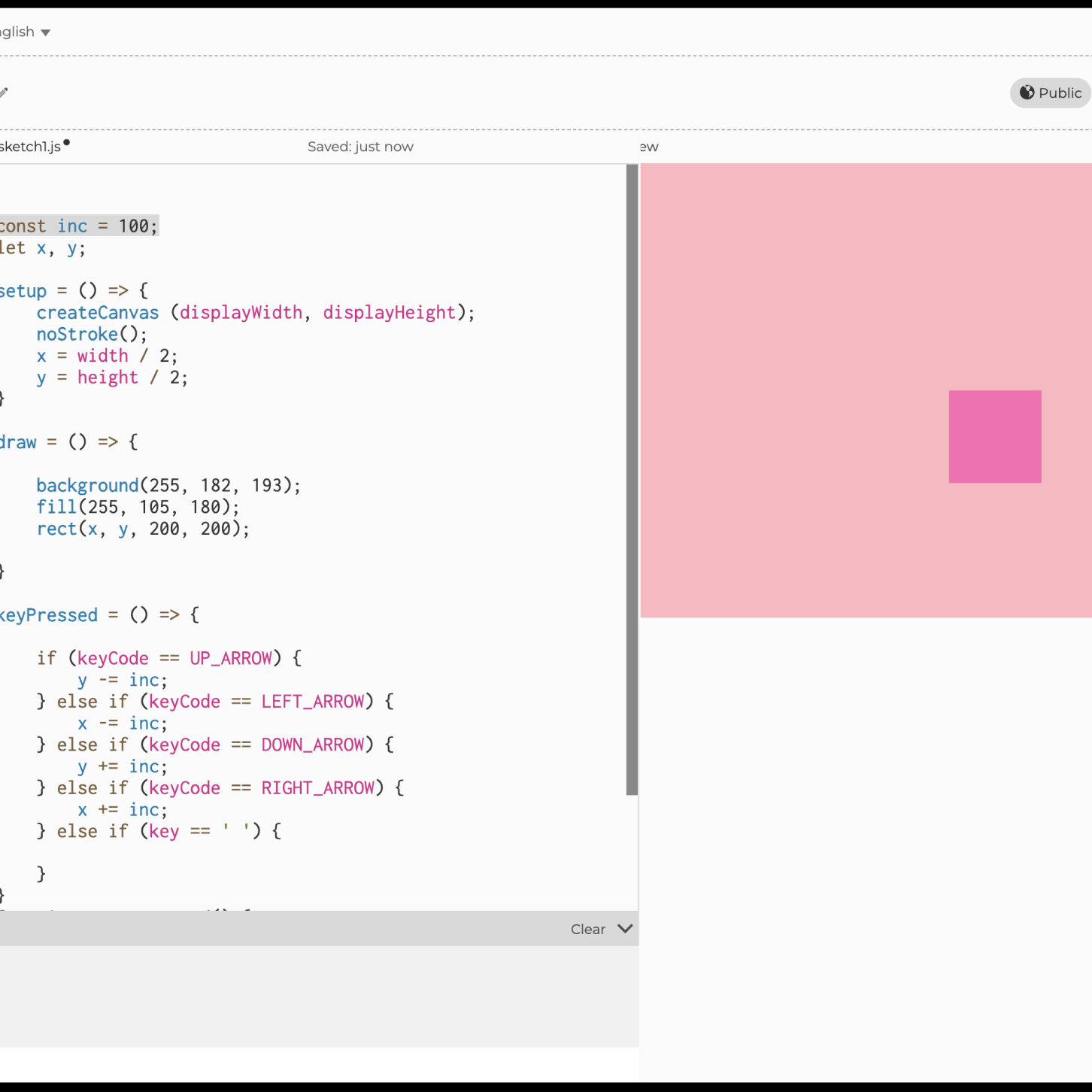
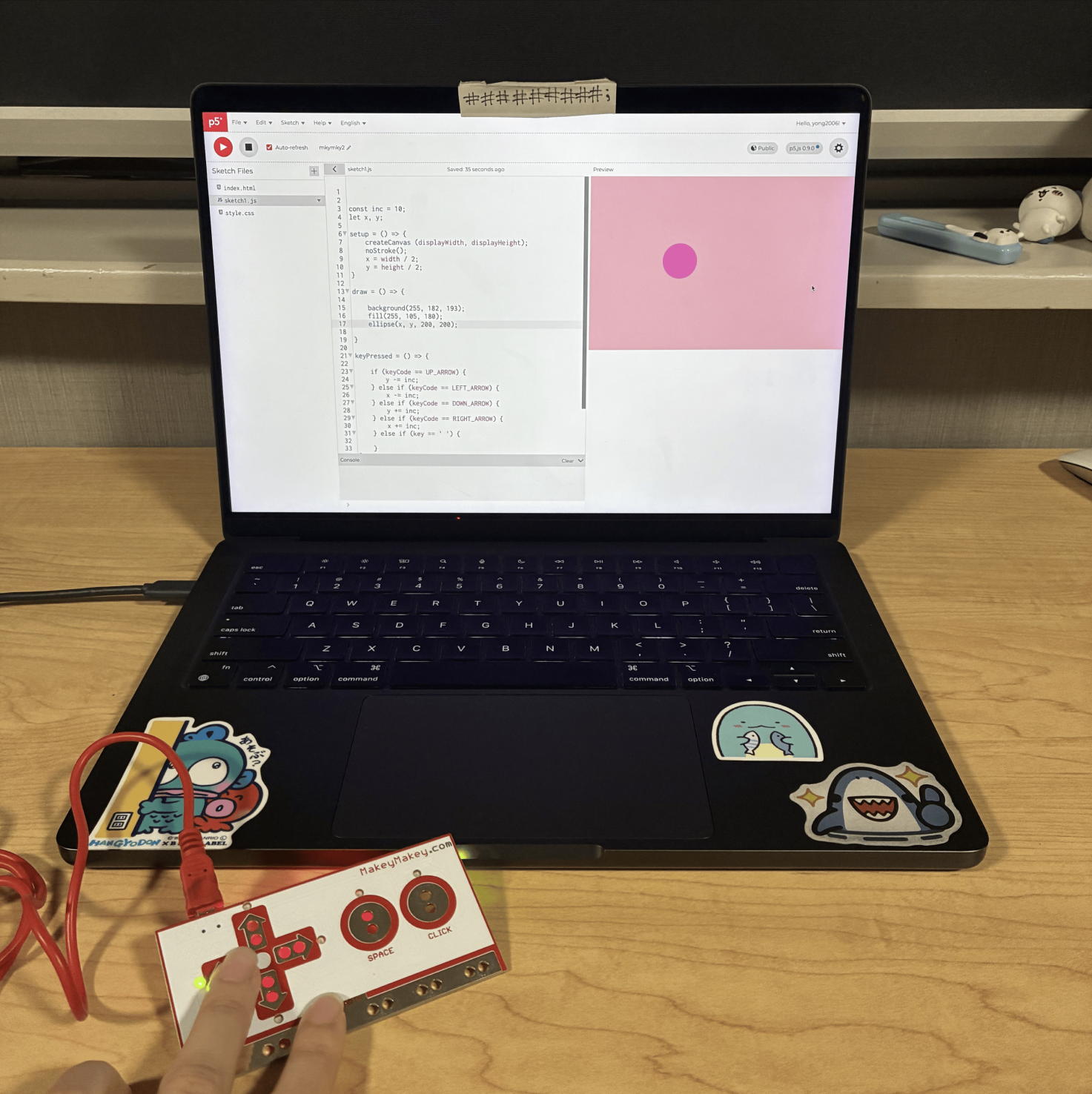
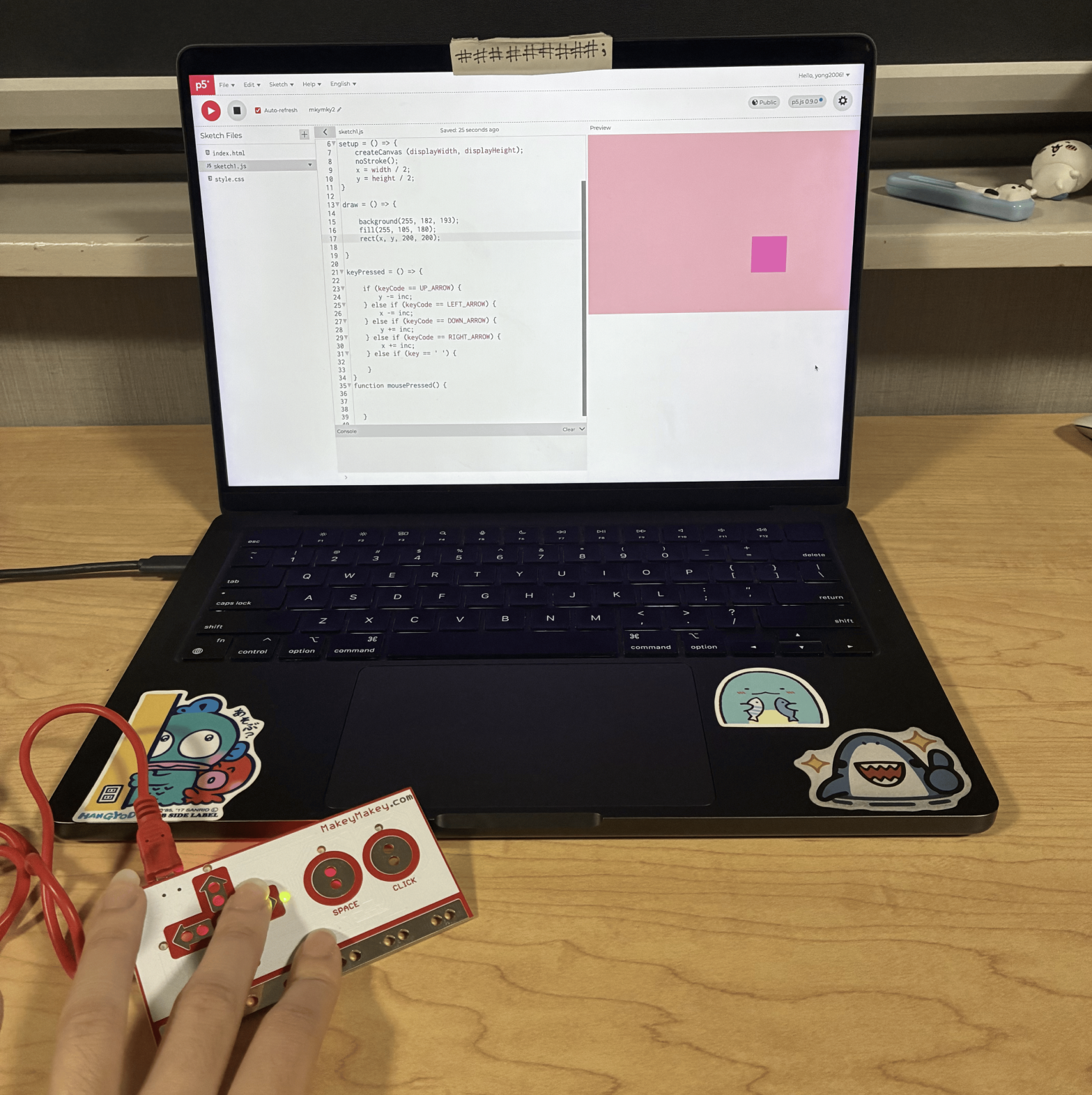
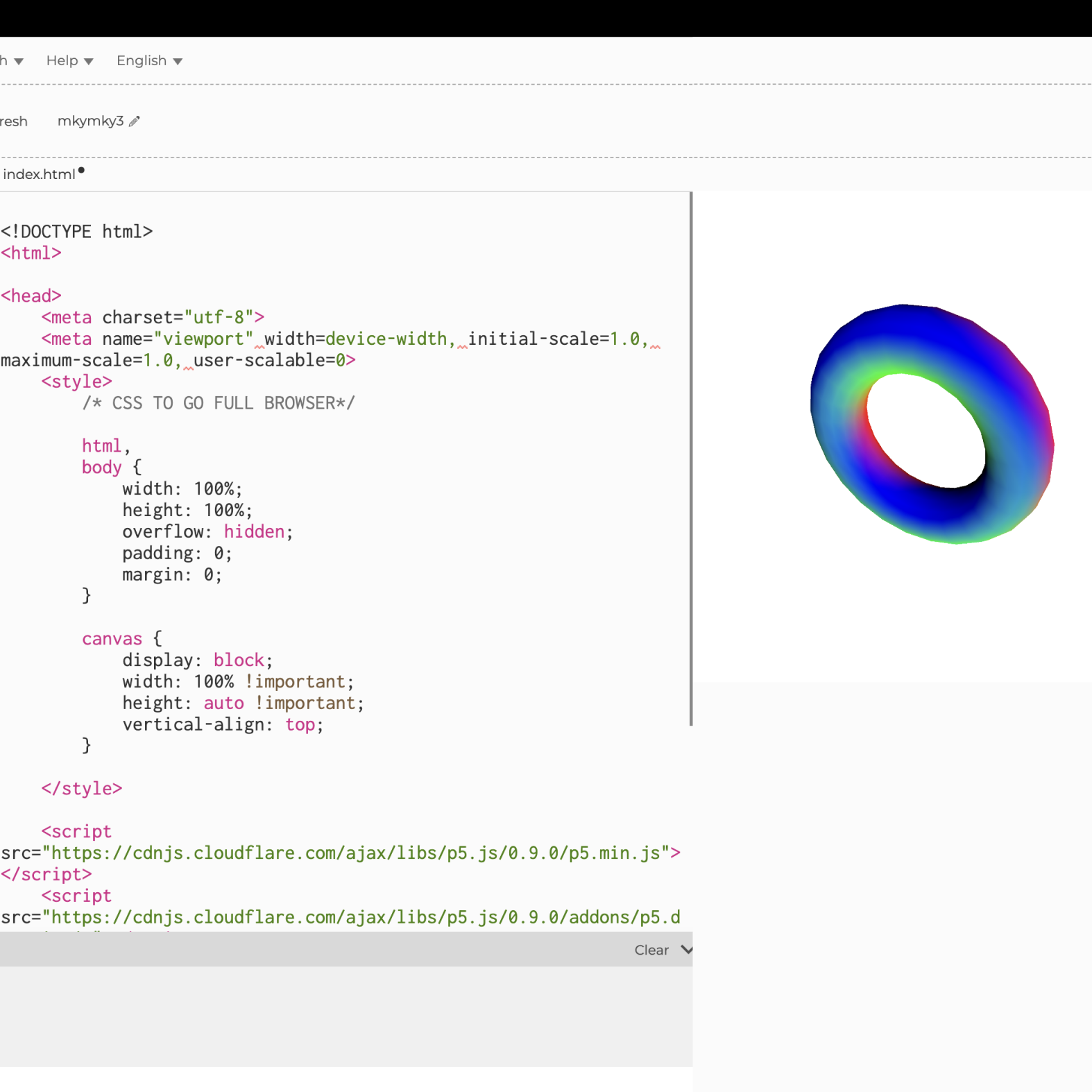
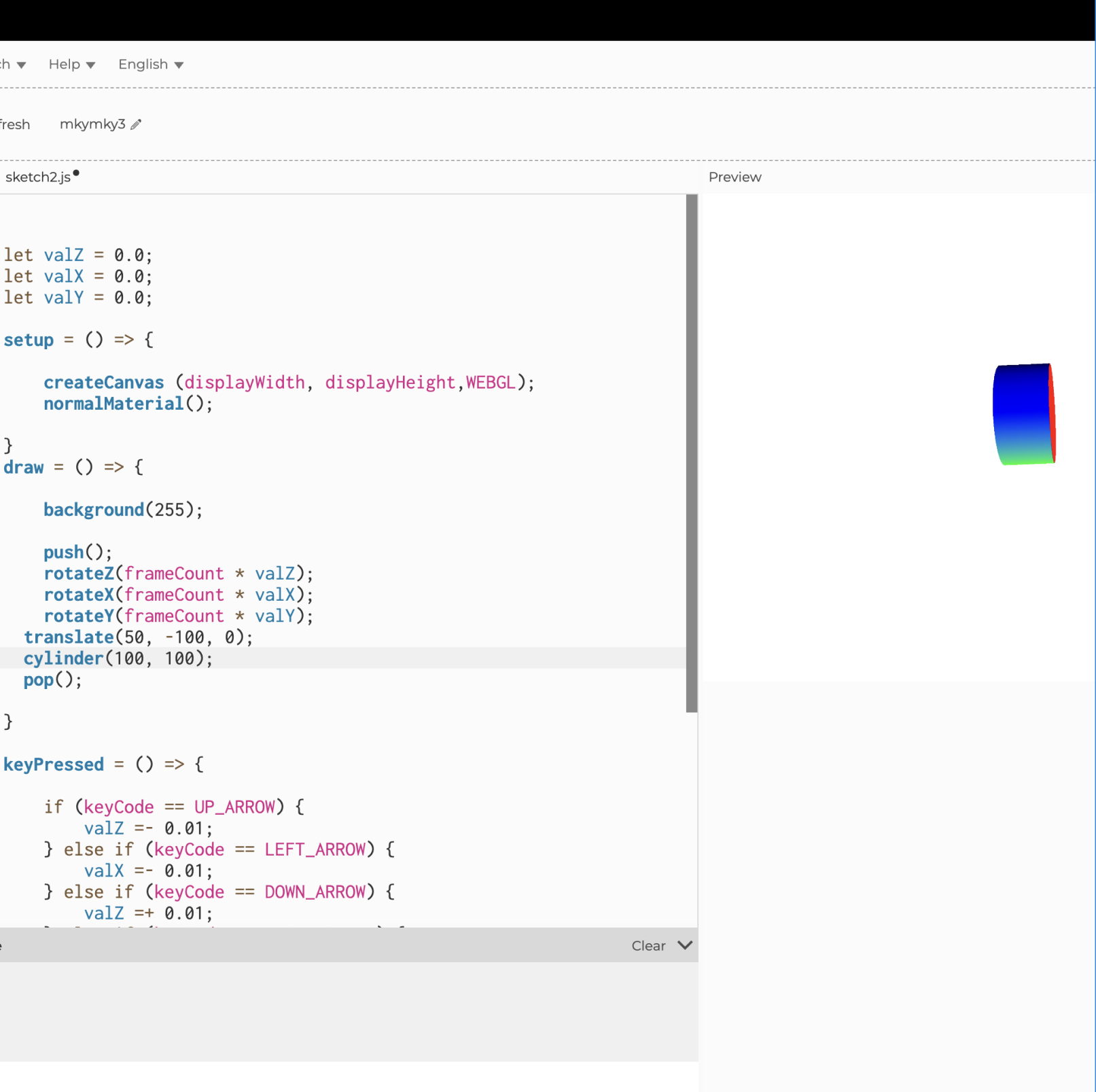
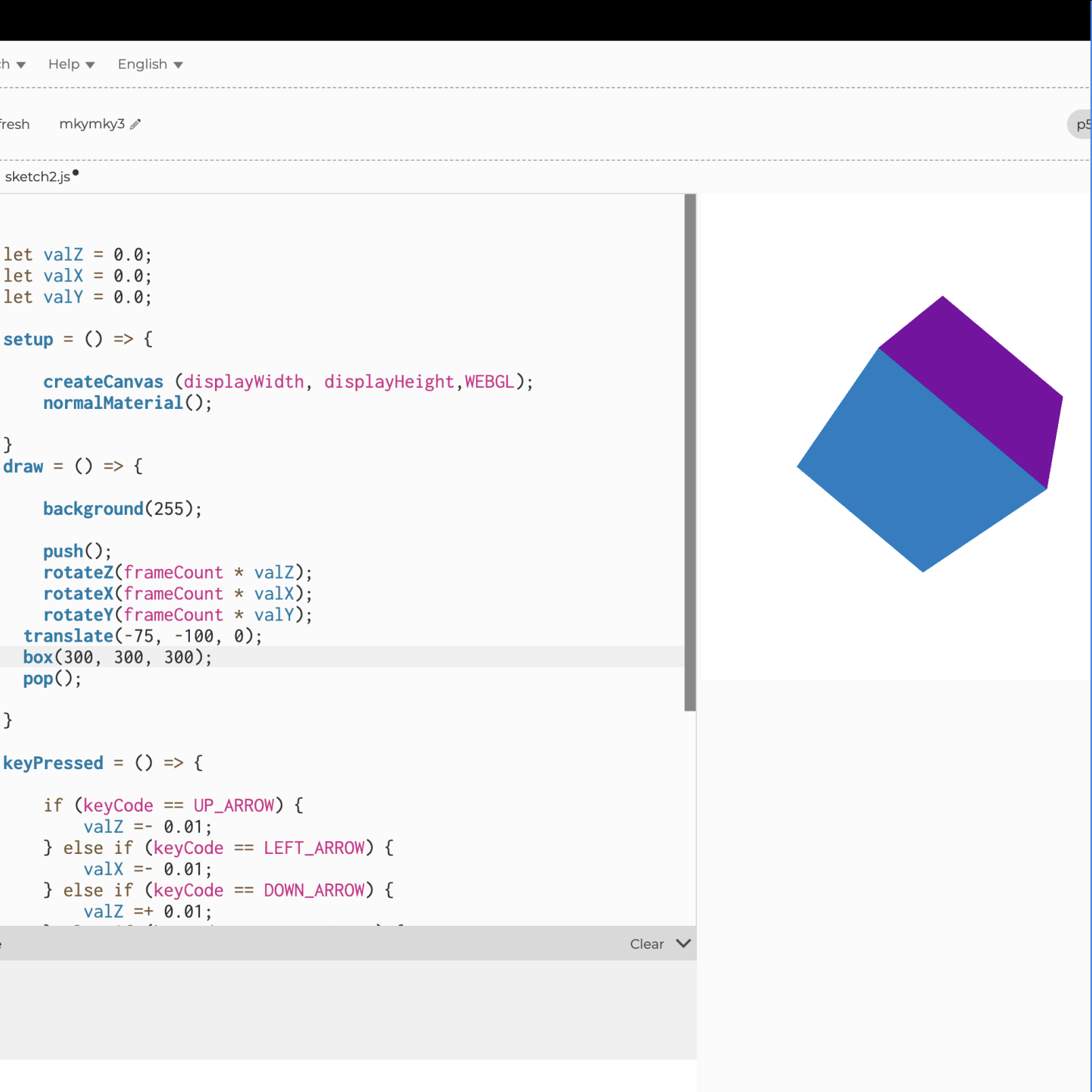
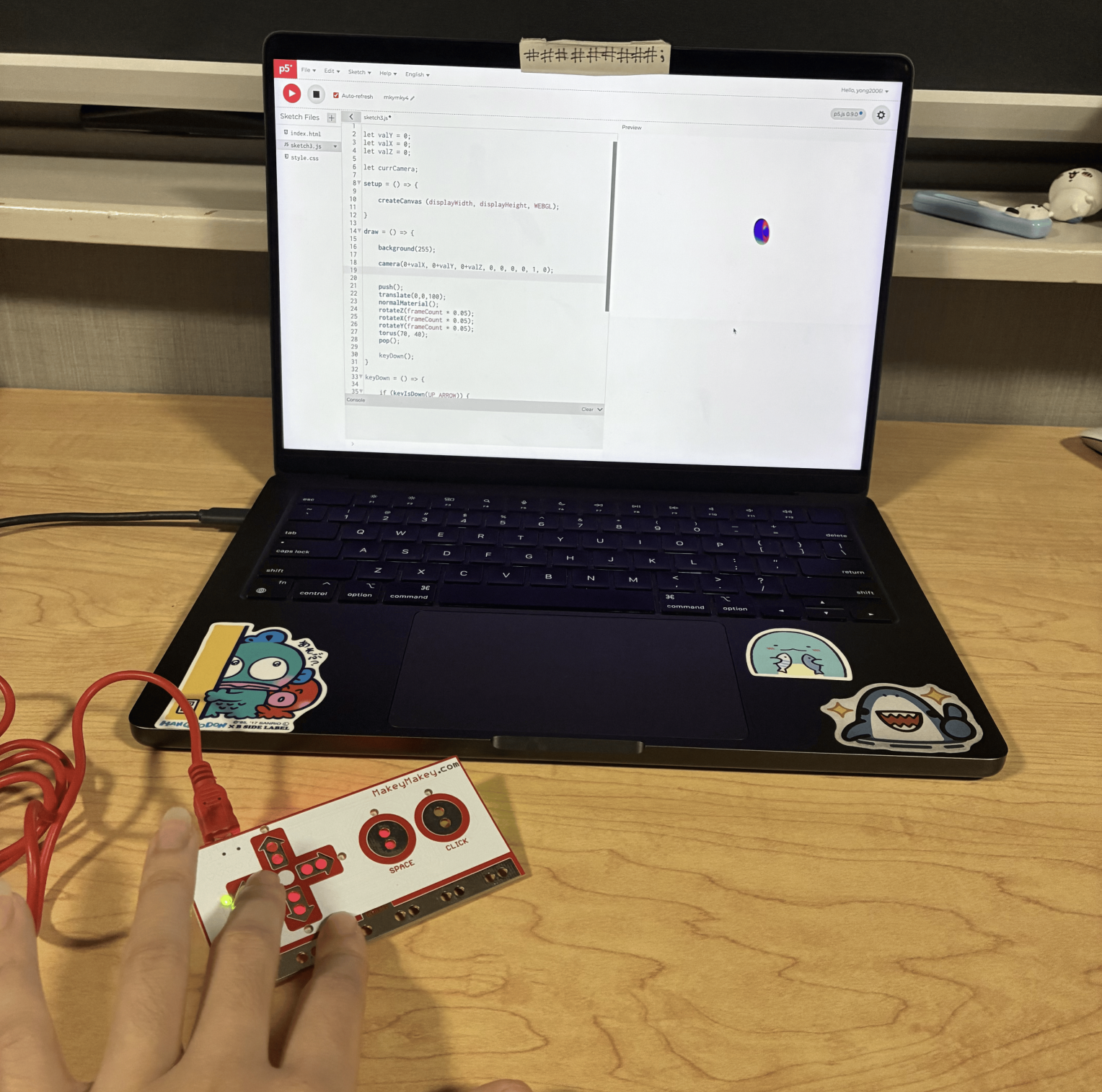
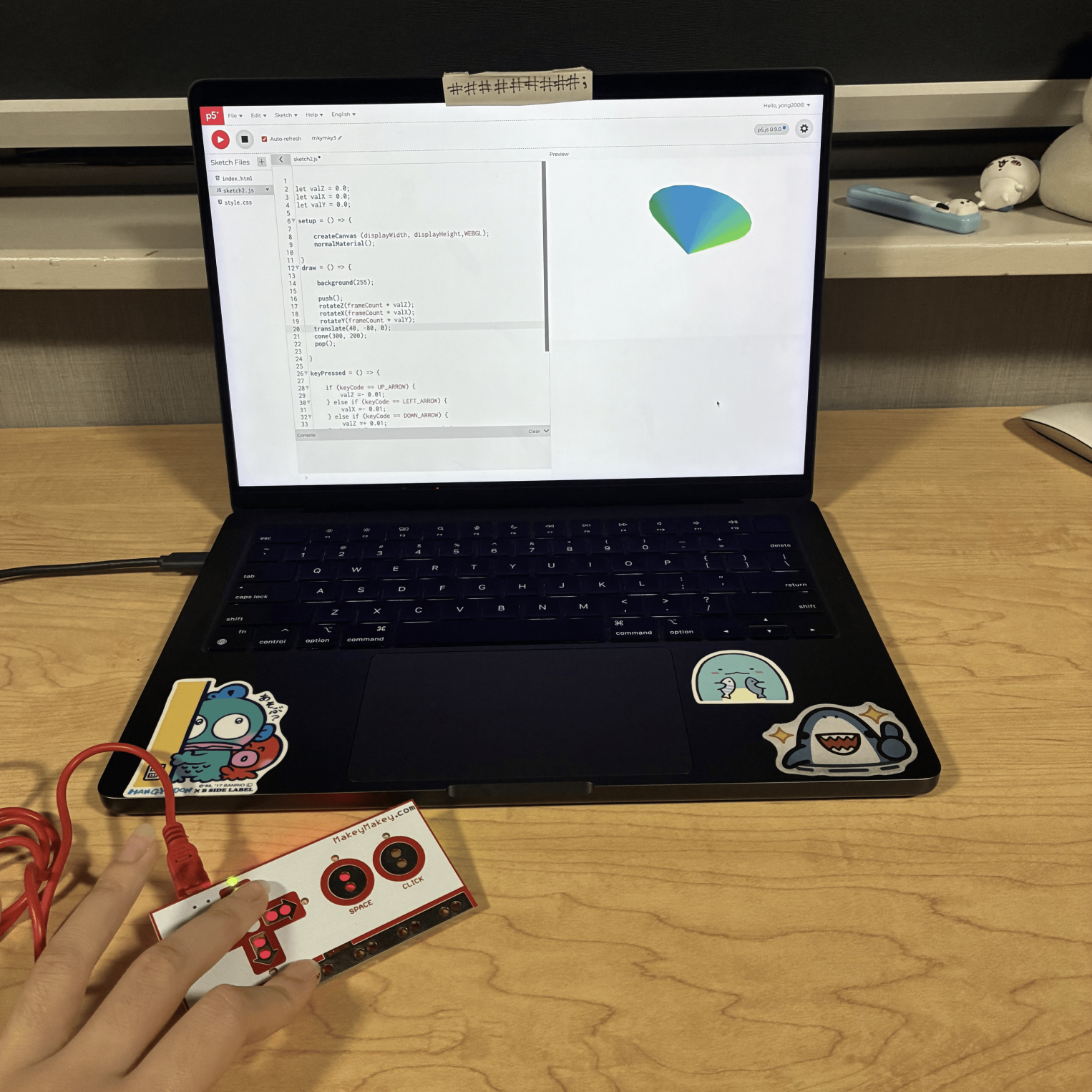
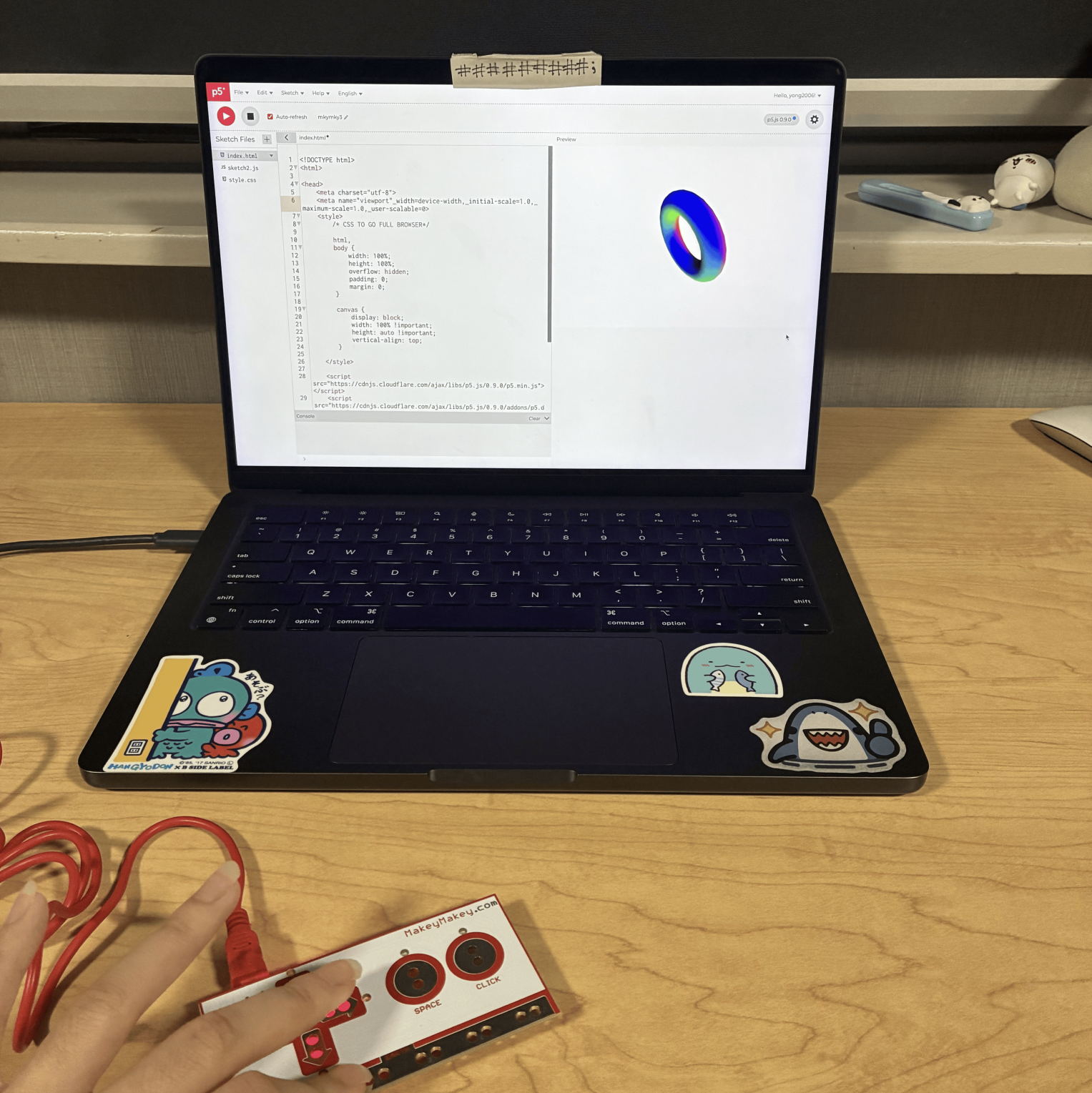
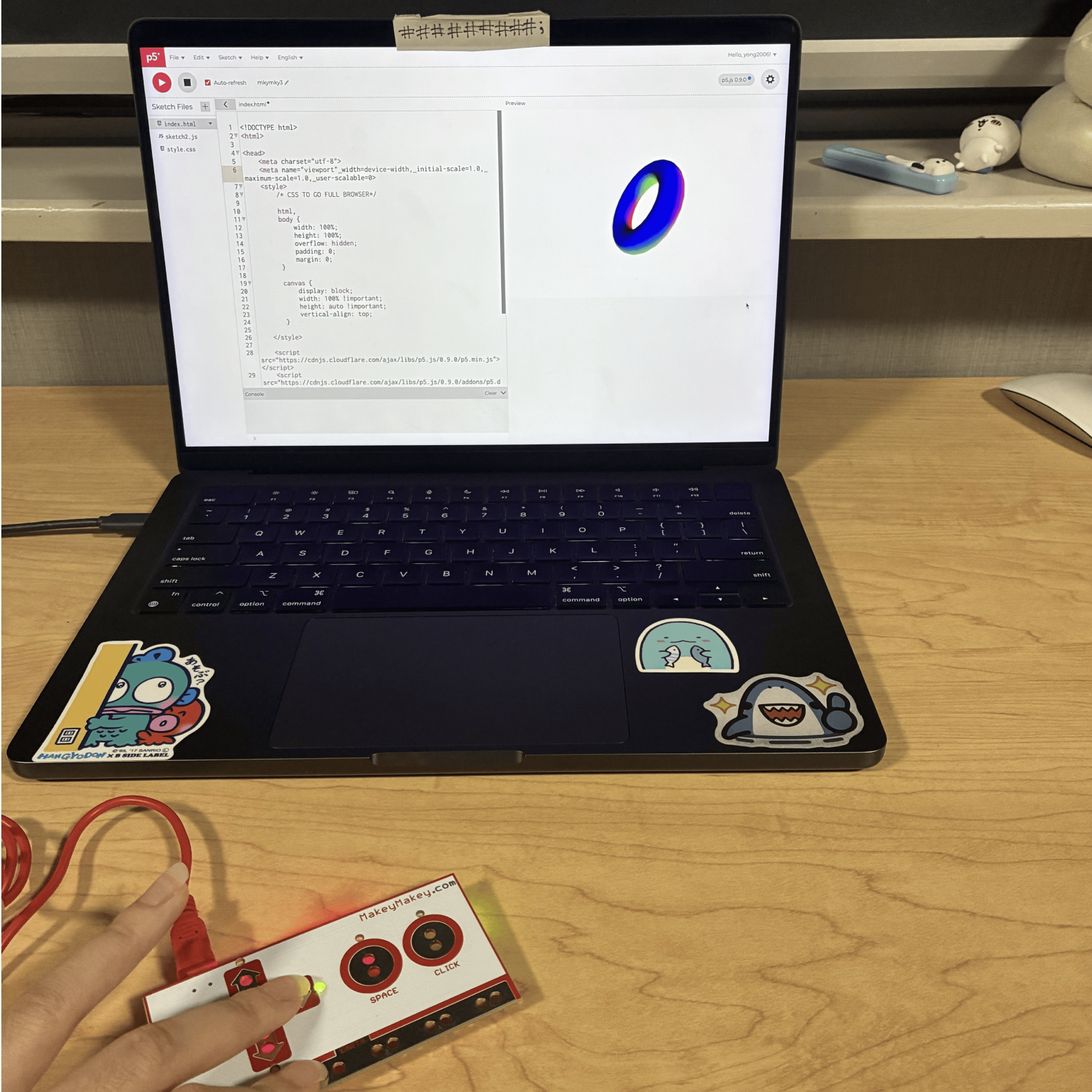
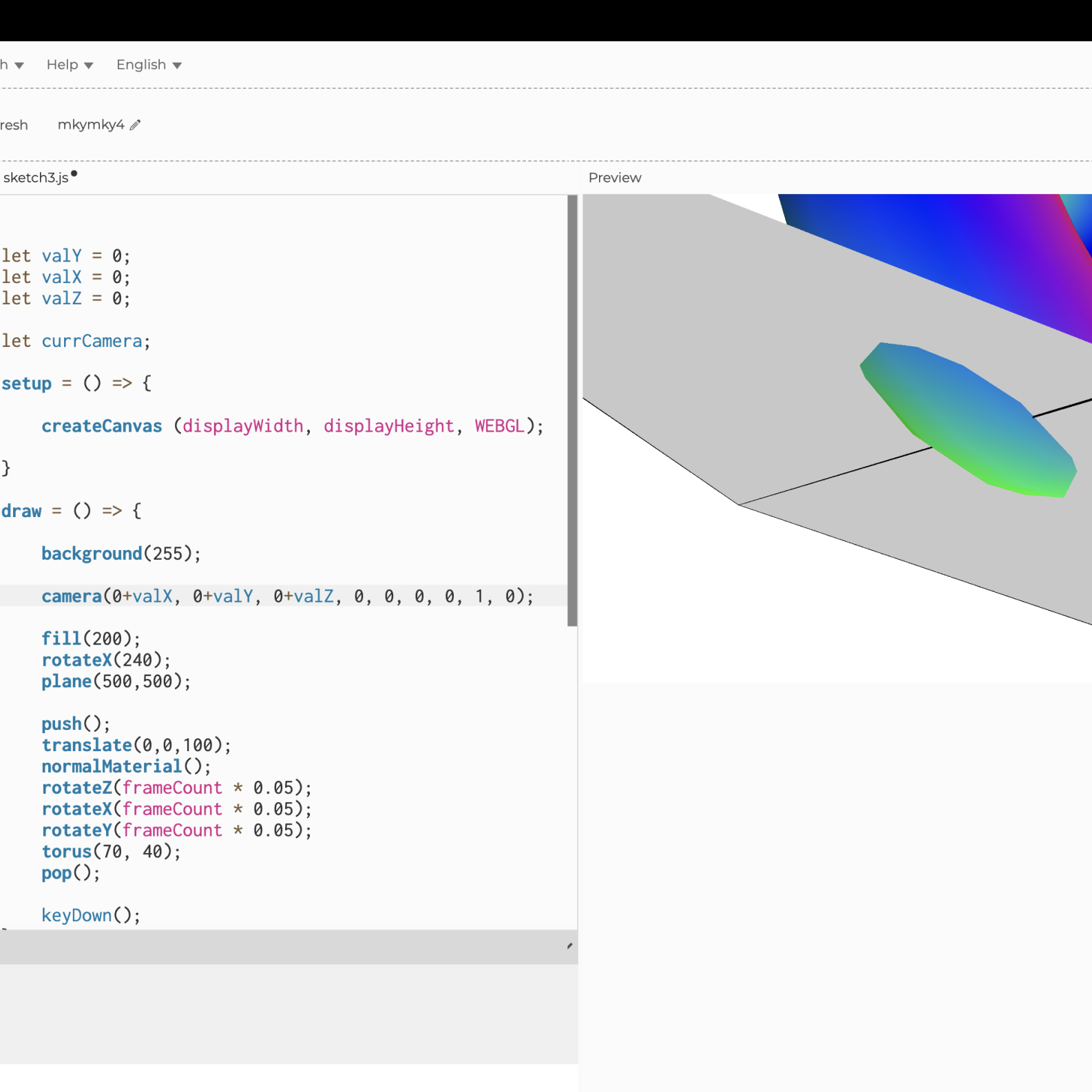
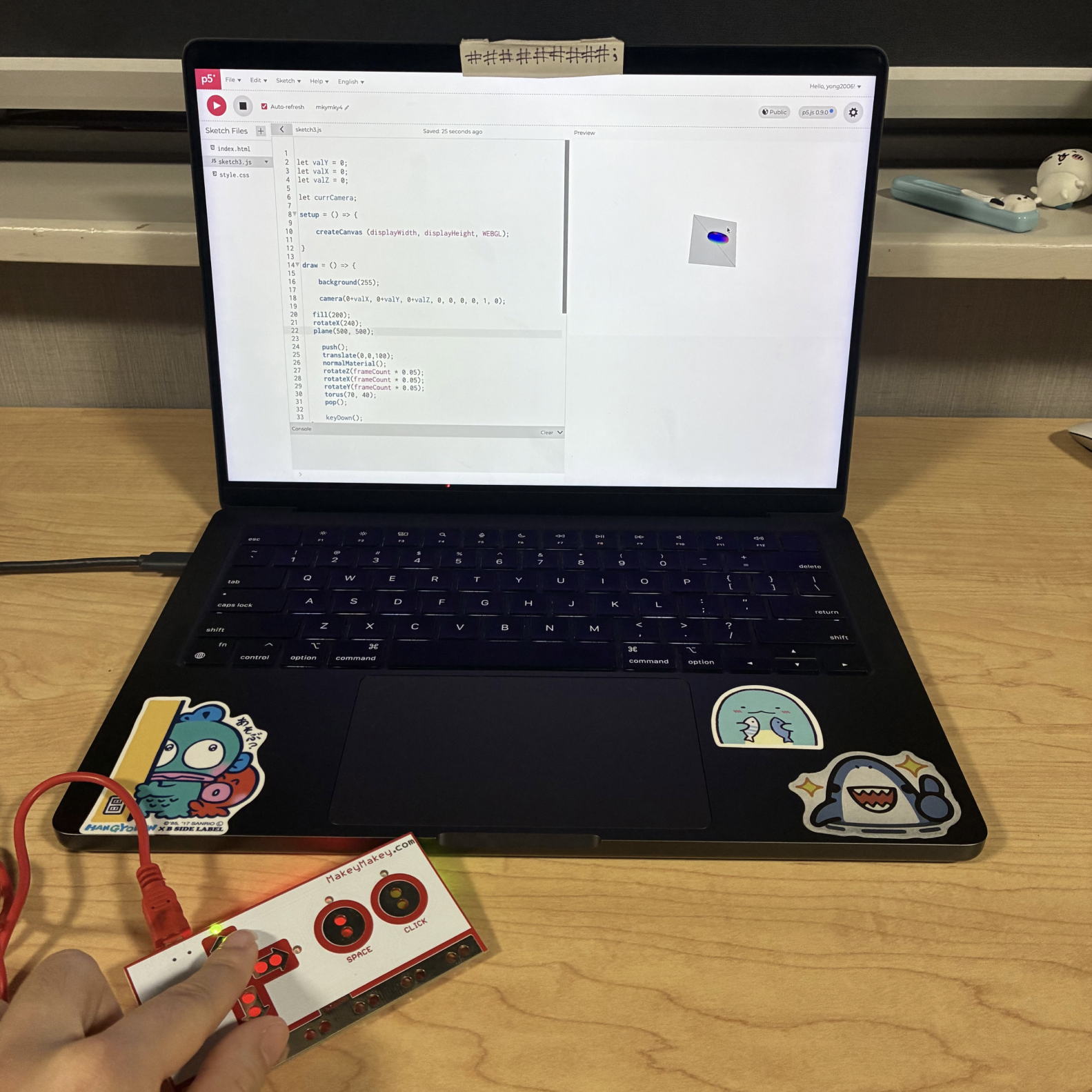
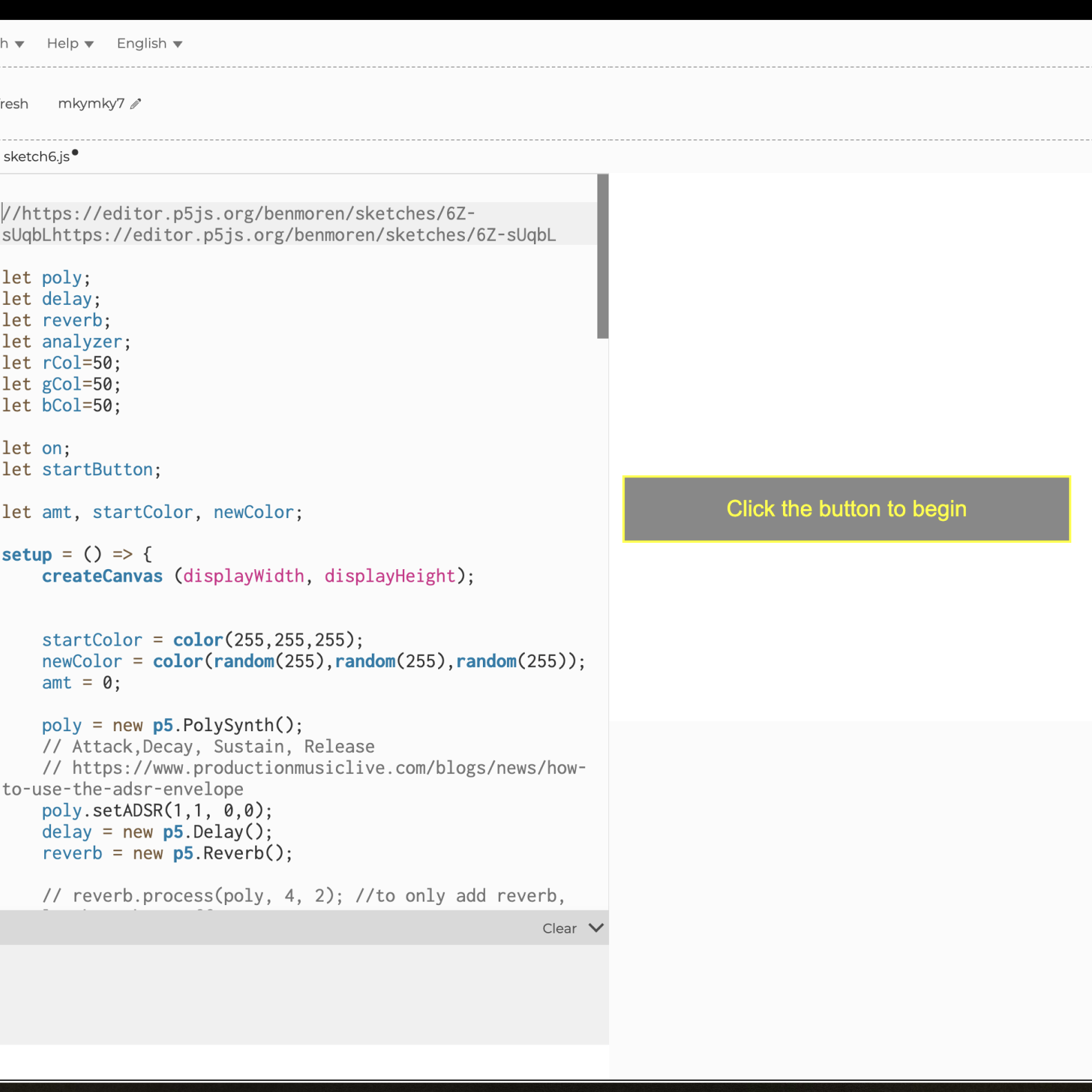
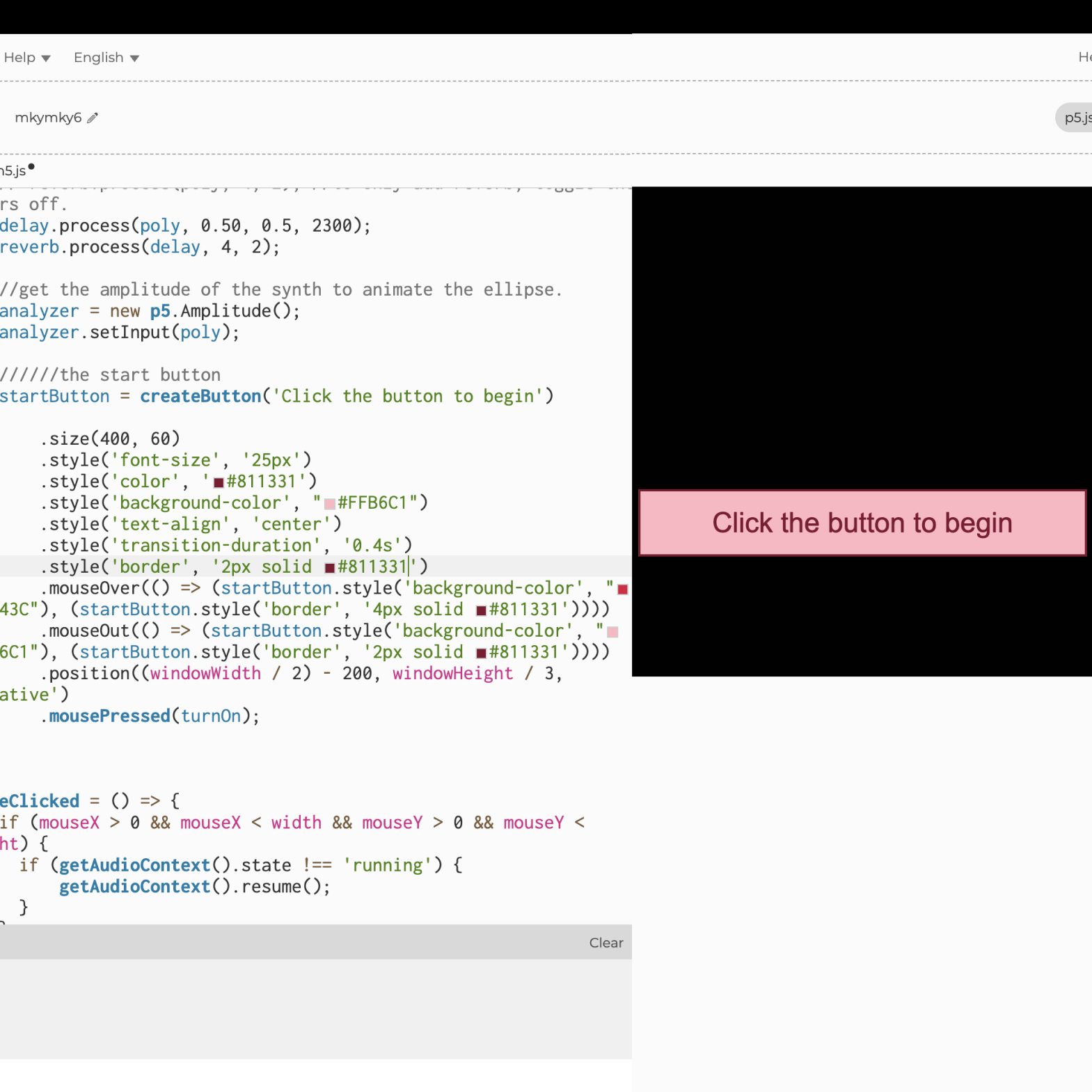
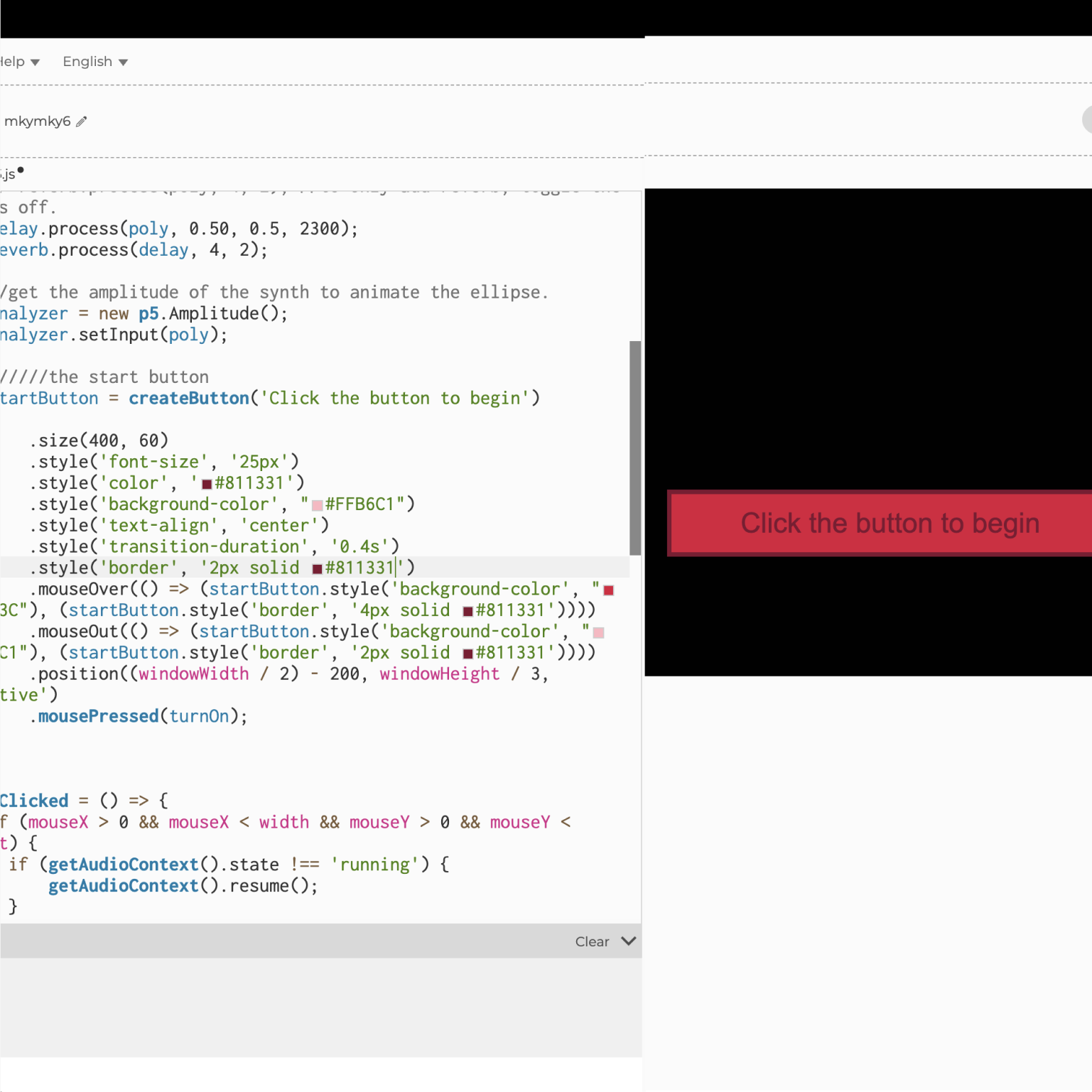
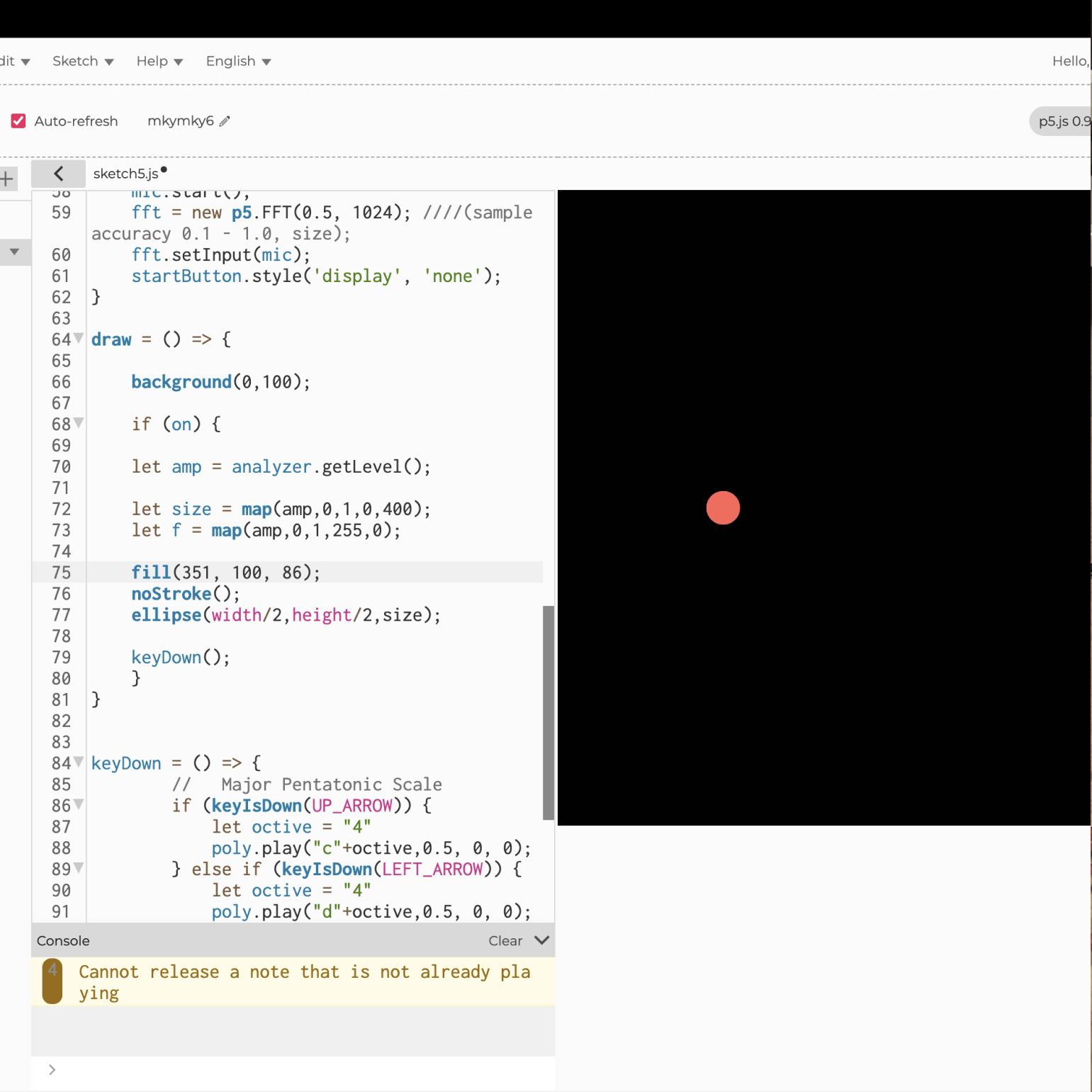
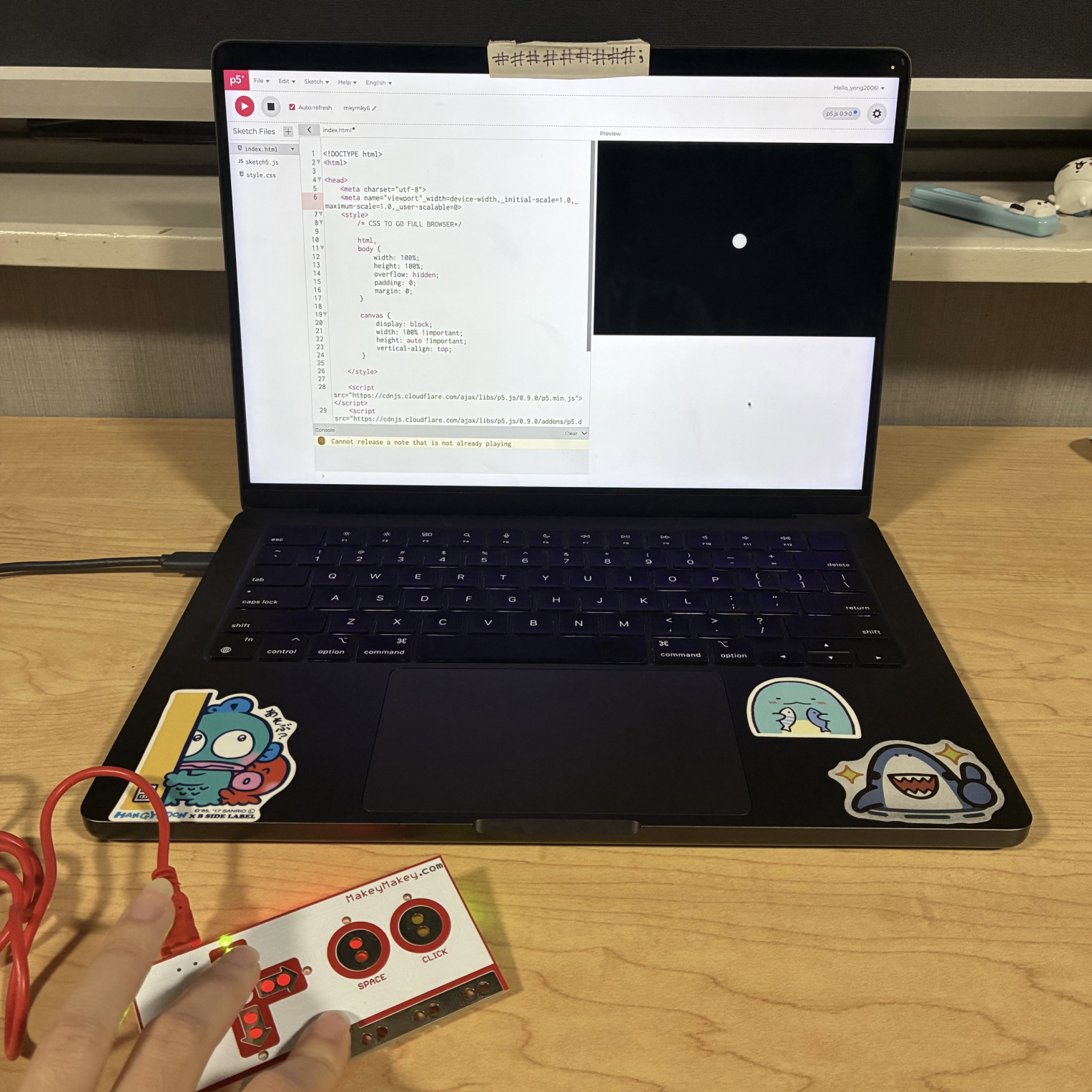
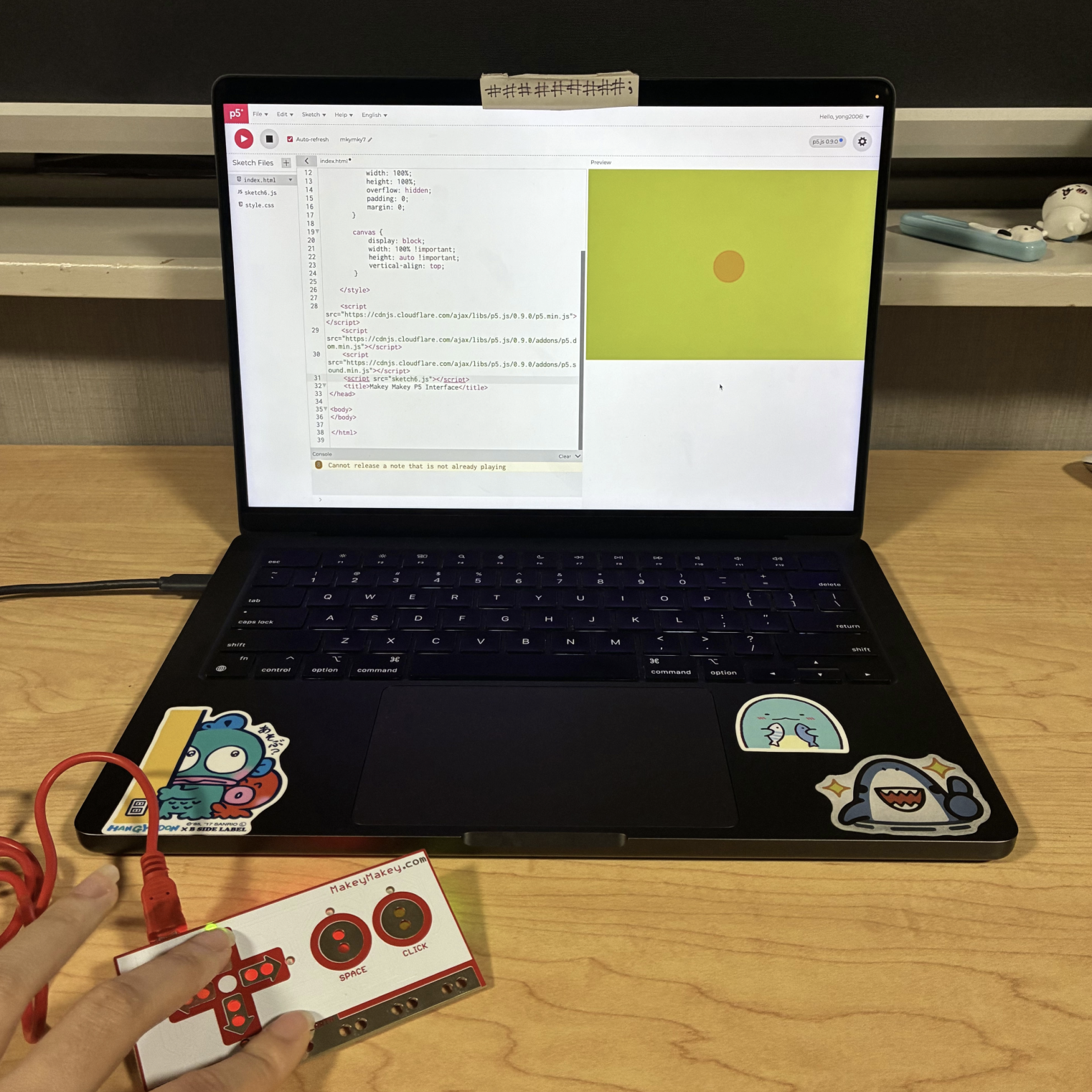
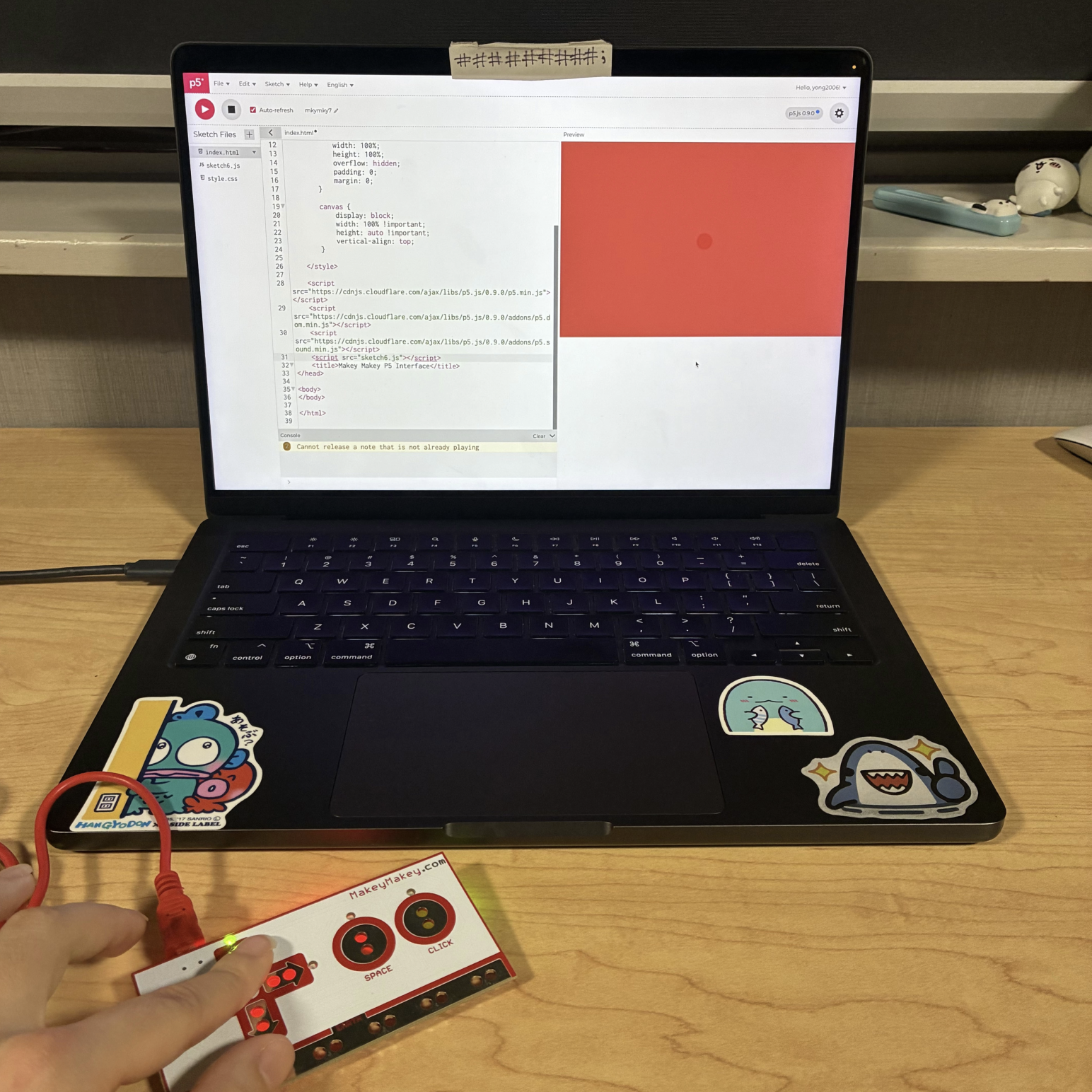
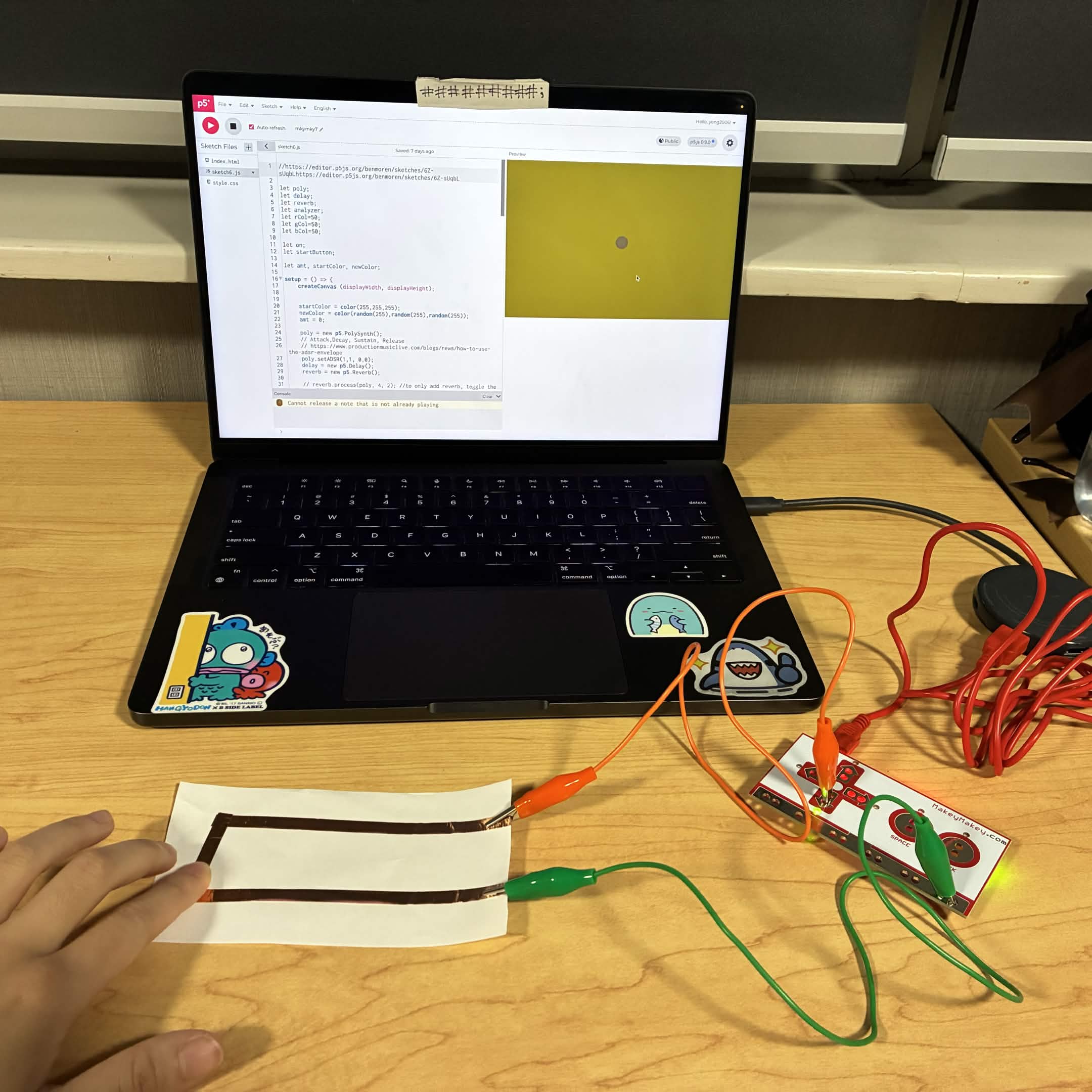
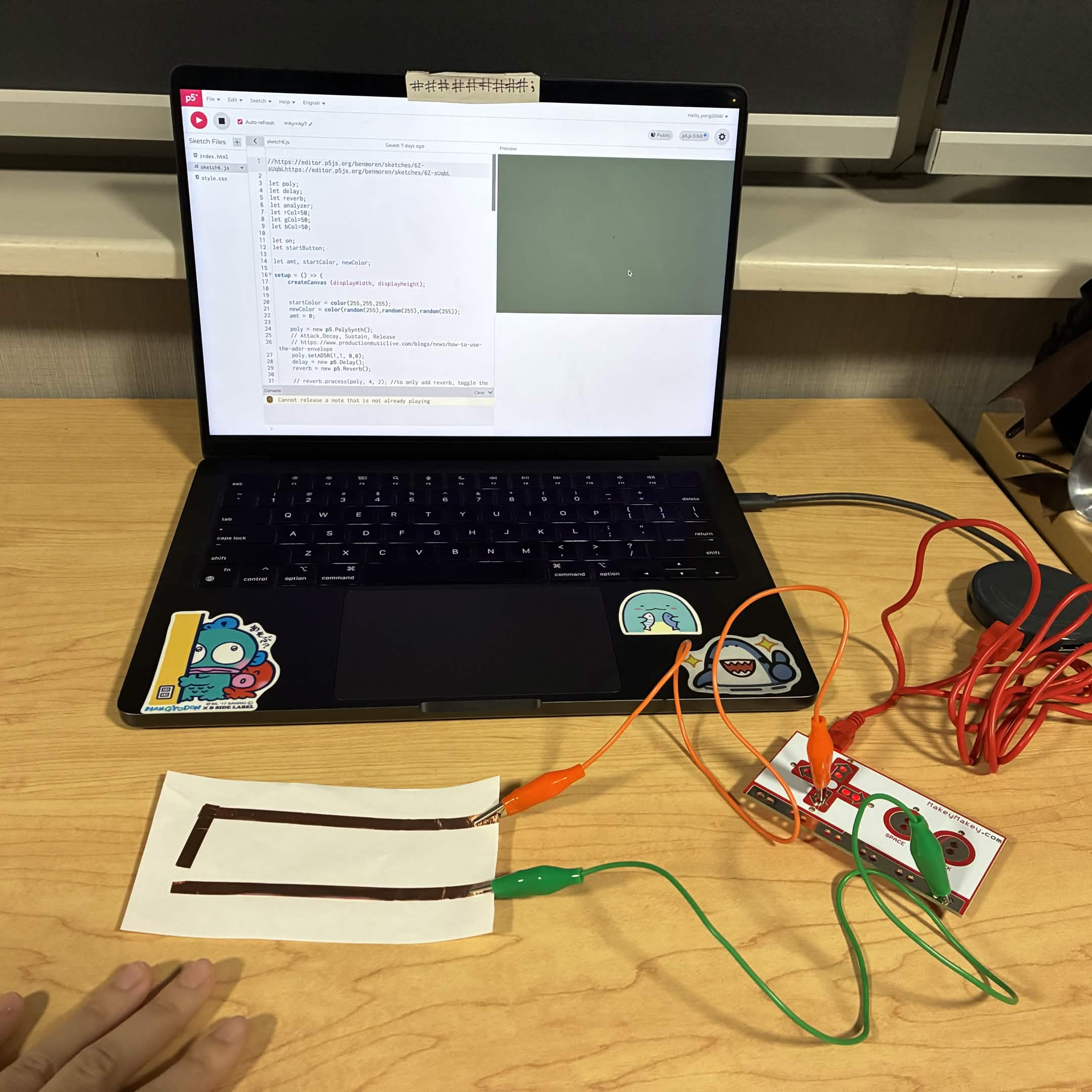
This was the first sketch where the user can change the colour of the square by clicking the arrow buttons, space button, and the 'click' button on the Makey Makey. I added the sketch to my code and began to play with what colours the square would turn depending on the buttons I would click. The square began as black and could turn pink, cyan, amongst other colours. This was the first sketch where the user can change the colour of the square by clicking the arrow buttons, space button, and the 'click' button on the Makey Makey. I changed the original colour of the square to bright pink. This was the first sketch where the user can change the colour of the square by clicking the arrow buttons, space button, and the 'click' button on the Makey Makey. I changed the original shape to a circle and I clicked the space button on the Makey Makey to make the circle appear cyan. This was the first sketch where the user can change the colour of the square by clicking the arrow buttons, space button, and the 'click' button on the Makey Makey. This is an image of me using the Makey Makey to make the circle change colours from pink to green by clicking the right arrow button. This was the second sketch where the user can move the circle around the canvas by clicking the arrow buttons on the Makey Makey. This is the original file that was given to us. This was the second sketch where the user can move the circle around the canvas by clicking the arrow buttons on the Makey Makey. I changed the size of the circle to be larger and changed the colour to a hot pink with the background being light pink. This was the second sketch where the user can move the circle around the canvas by clicking the arrow buttons on the Makey Makey. I changed the circle to be a square and then I changed the distance that the square travelled around the canvas when the buttons are pressed. I did this by editing the 'const inc =' in the code. This was the second sketch where the user can move the circle around the canvas by clicking the arrow buttons on the Makey Makey. This was me clicking the left button on the Makey Makey to make the circle move left on the canvas. This was the second sketch where the user can move the circle around the canvas by clicking the arrow buttons on the Makey Makey. This is me clicking the down and left button to make the square move around the canvas. This was the third sketch where the user can change the direction that the 3D torus spins by clicking the arrow buttons on the Makey Makey. I clicked the left arrow button to make the torus start spinning that way. This was the third sketch where the user can change the direction that the 3D torus spins by clicking the arrow buttons on the Makey Makey. I changed the torus to a cylinder, I increased the size of it and I moved where it was on the canvas. This was the third sketch where the user can change the direction that the 3D torus spins by clicking the arrow buttons on the Makey Makey. I changed the torus to a cube and enlarged the size of the shape. I also changed the way it spun. This was the third sketch where the user can change the direction that the 3D torus spins by clicking the arrow buttons on the Makey Makey. This was me clicking the left arrow on the Makey Makey to make the torus spin a different direction. This was the third sketch where the user can change the direction that the 3D torus spins by clicking the arrow buttons on the Makey Makey. I changed the torus to a cone and made the bottom part large. This was the fourth sketch where the user can change the direction and perspective of the camera that is viewing the 3D torus and the plane underneath it by clicking the arrow buttons on the Makey Makey. I removed the plane underneath the torus and clicked the down arrow to push the perspective further back for a more clear view of the torus. This was the fourth sketch where the user can change the direction and perspective of the camera that is viewing the 3D torus and the plane underneath it by clicking the arrow buttons on the Makey Makey. I changed the camera perspective by clicking the arrow buttons. This was the fourth sketch where the user can change the direction and perspective of the camera that is viewing the 3D torus and the plane underneath it by clicking the arrow buttons on the Makey Makey. I added the plane back and changed the camera perspective. This was the fourth sketch where the user can change the direction and perspective of the camera that is viewing the 3D torus and the plane underneath it by clicking the arrow buttons on the Makey Makey. I added the plane back and changed the camera perspective. This was the seventh sketch where the user can click a button and be led to a page where they can click the arrow buttons on the Makey Makey to make different vibrating noises. Depending on the length of time the arrows are held the circle and sound will become larger and louder and the colours of the shape and background will change. This was the landing page for this sketch. This was the sixth sketch where the user can click a button and be led to a page where they can click the arrow buttons on the Makey Makey to make different vibrating noises. Depending on the length of time the arrows are held the circle and sound will become larger and louder. I edited the button to be pink with an outline of a dark purple/pink. This was the sixth sketch where the user can click a button and be led to a page where they can click the arrow buttons on the Makey Makey to make different vibrating noises. Depending on the length of time the arrows are held the circle and sound will become larger and louder. I edited the button to be pink with an outline of a dark purple/pink. I made it so when the user hovers over the button it turns red. This was the sixth sketch where the user can click a button and be led to a page where they can click the arrow buttons on the Makey Makey to make different vibrating noises. Depending on the length of time the arrows are held the circle and sound will become larger and louder. I changed the placement, size, and colour of the circle. This was the sixth sketch where the user can click a button and be led to a page where they can click the arrow buttons on the Makey Makey to make different vibrating noises. Depending on the length of time the arrows are held the circle and sound will become larger and louder. This is me holding the up arrow to turn the circle white and play a high note. This was the seventh sketch where the user can click a button and be led to a page where they can click the arrow buttons on the Makey Makey to make different vibrating noises. Depending on the length of time the arrows are held the circle and sound will become larger and louder and the colours of the shape and background will change. This was me holding the up arrow to make the page turn different colours and play a high note. This was the seventh sketch where the user can click a button and be led to a page where they can click the arrow buttons on the Makey Makey to make different vibrating noises. Depending on the length of time the arrows are held the circle and sound will become larger and louder and the colours of the shape and background will change.I changed the size of the circle and continued to hold the up arrow until it changed to a different colour.

Activity 2
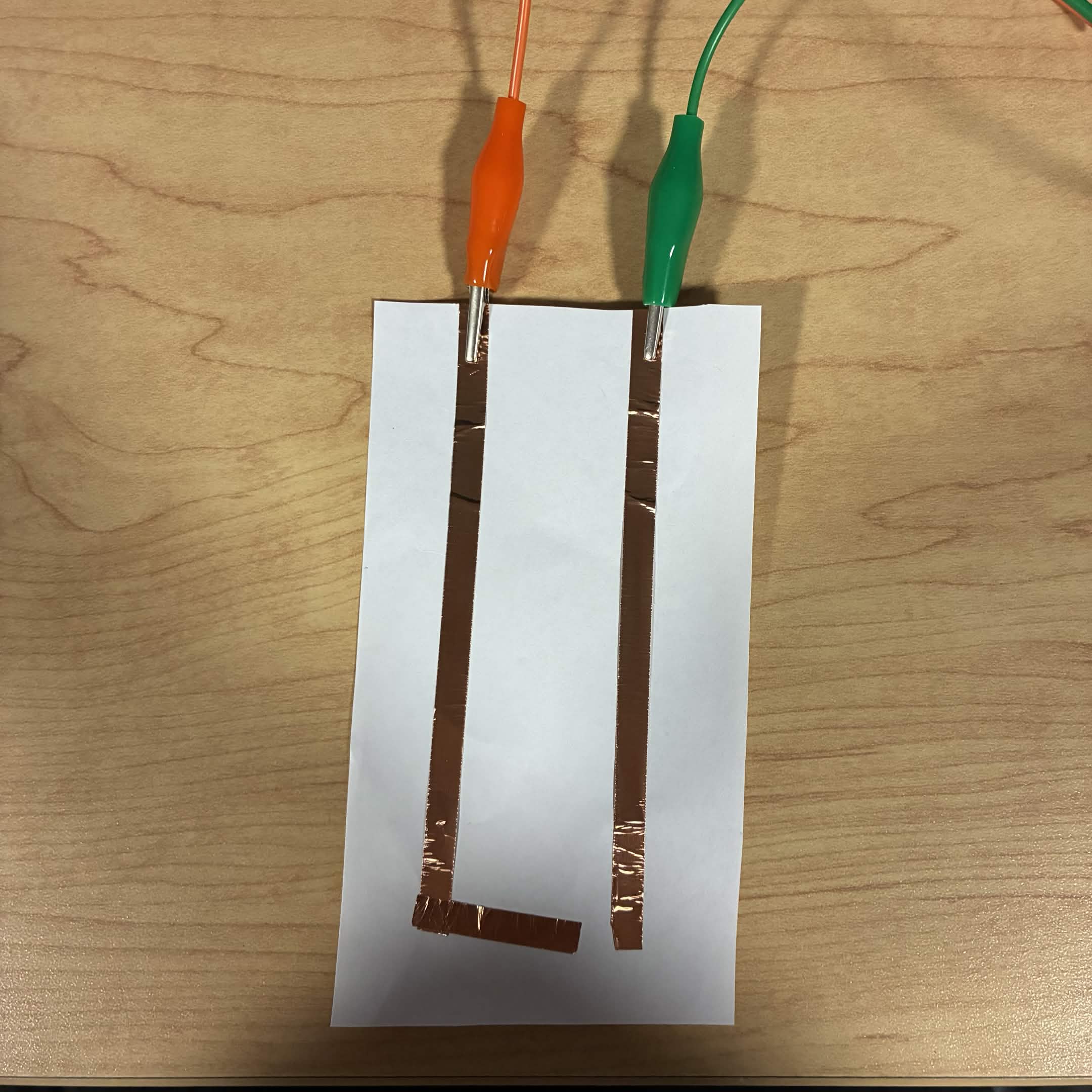
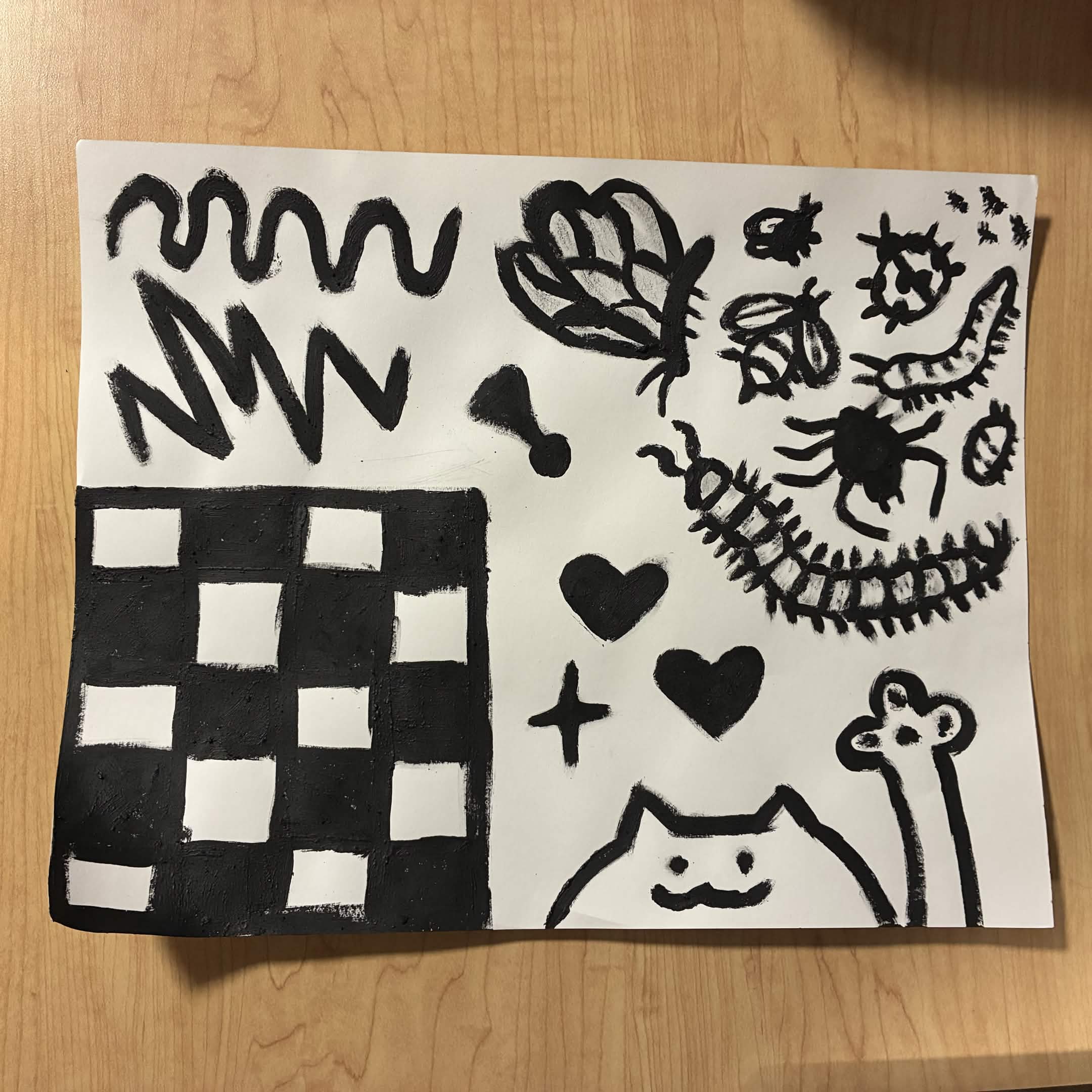
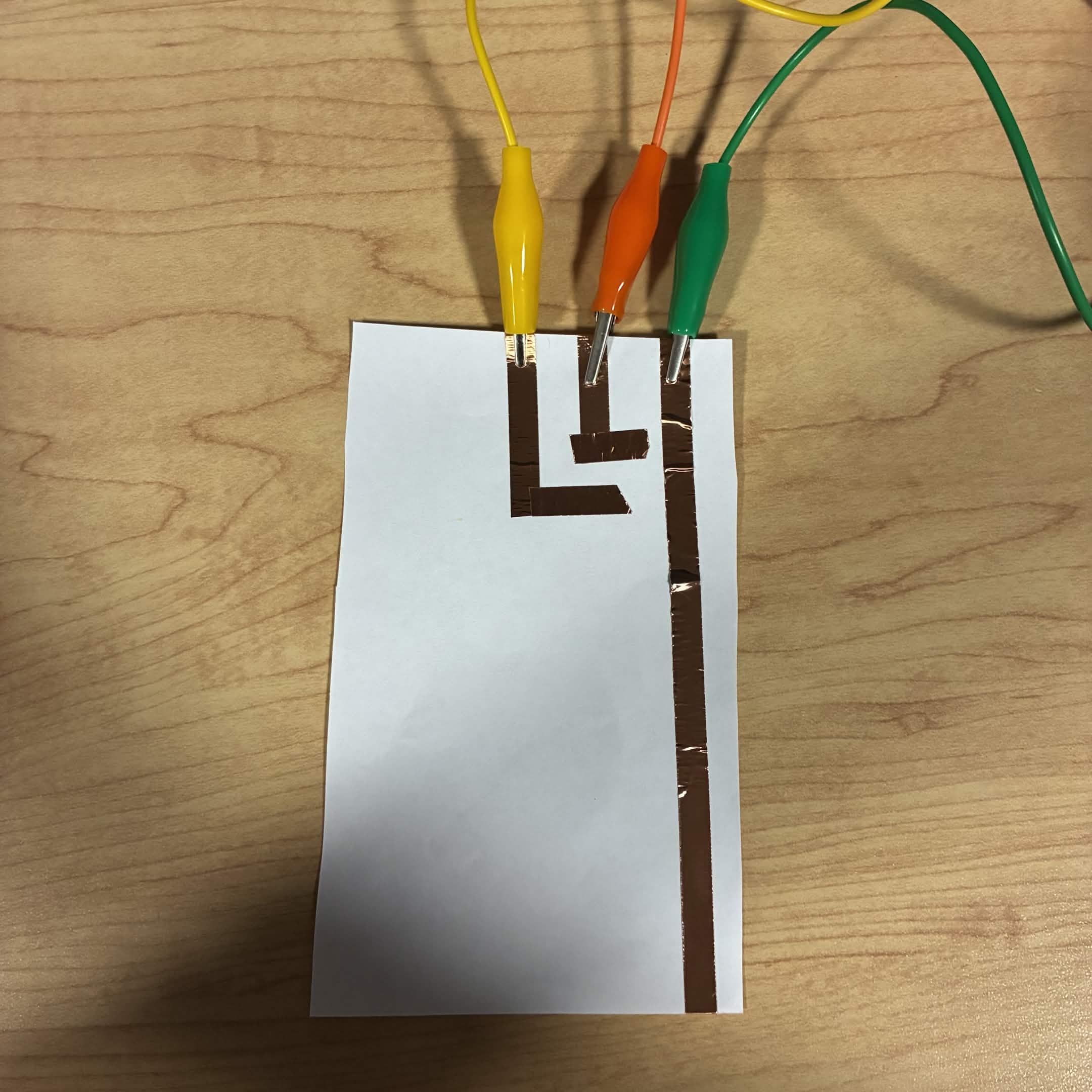
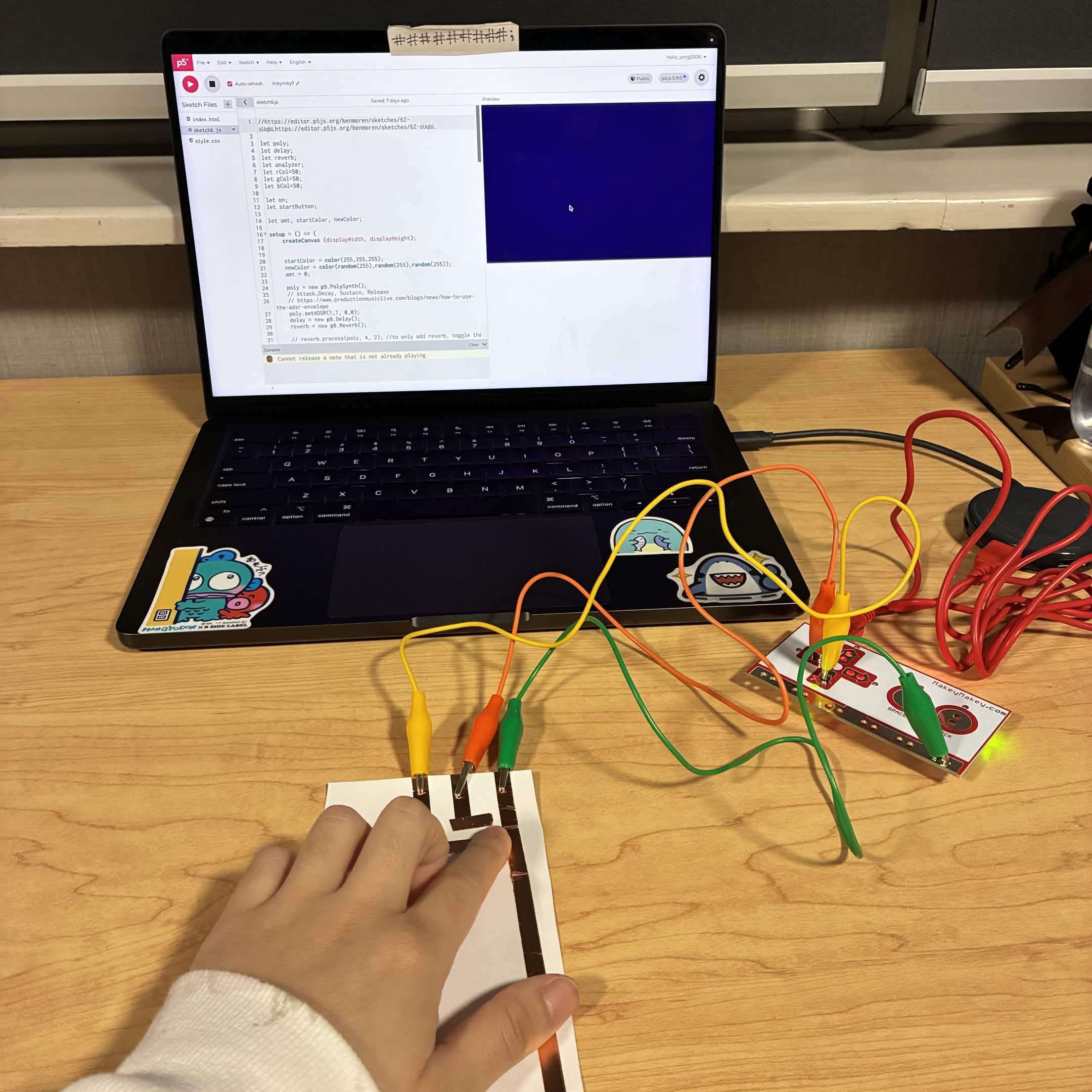
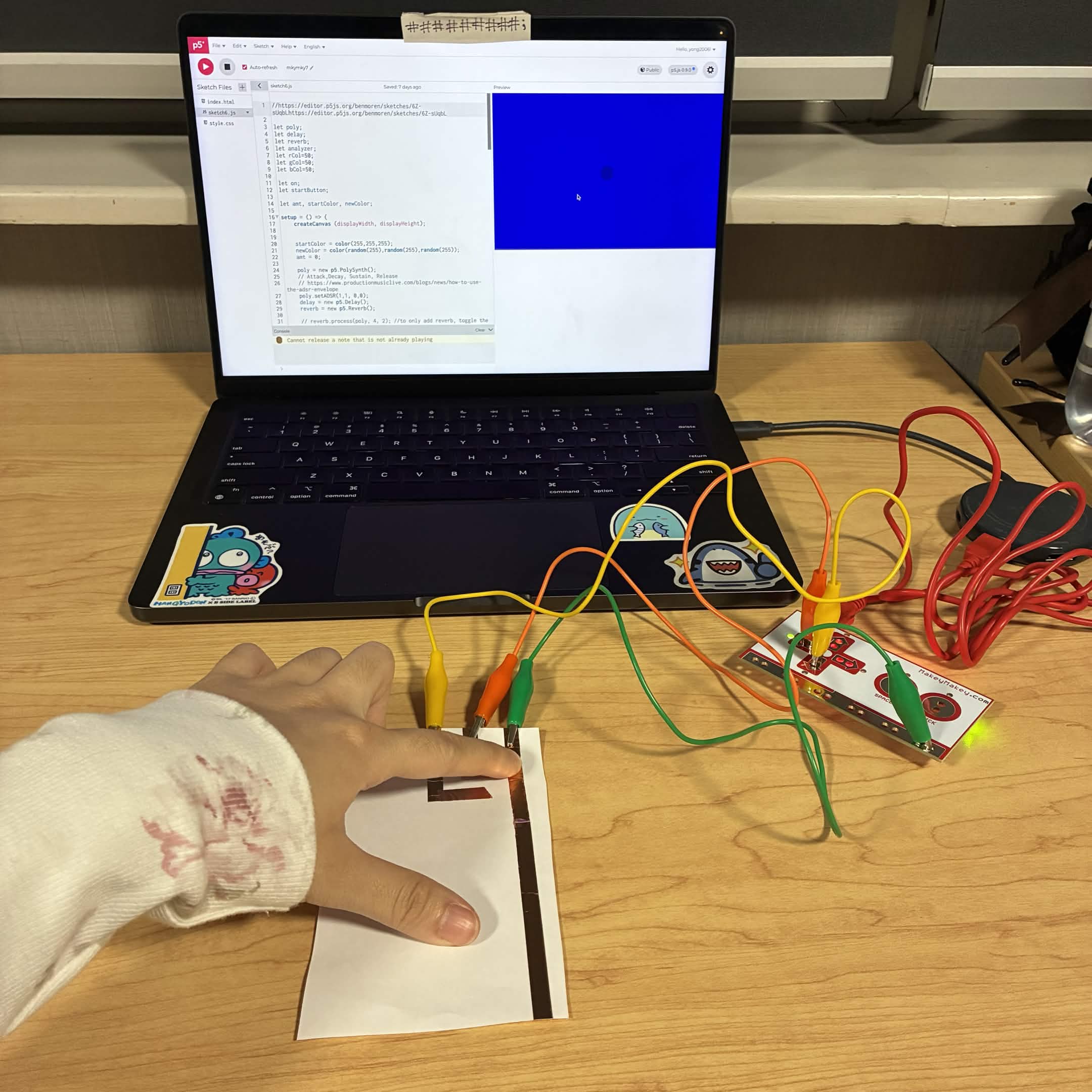
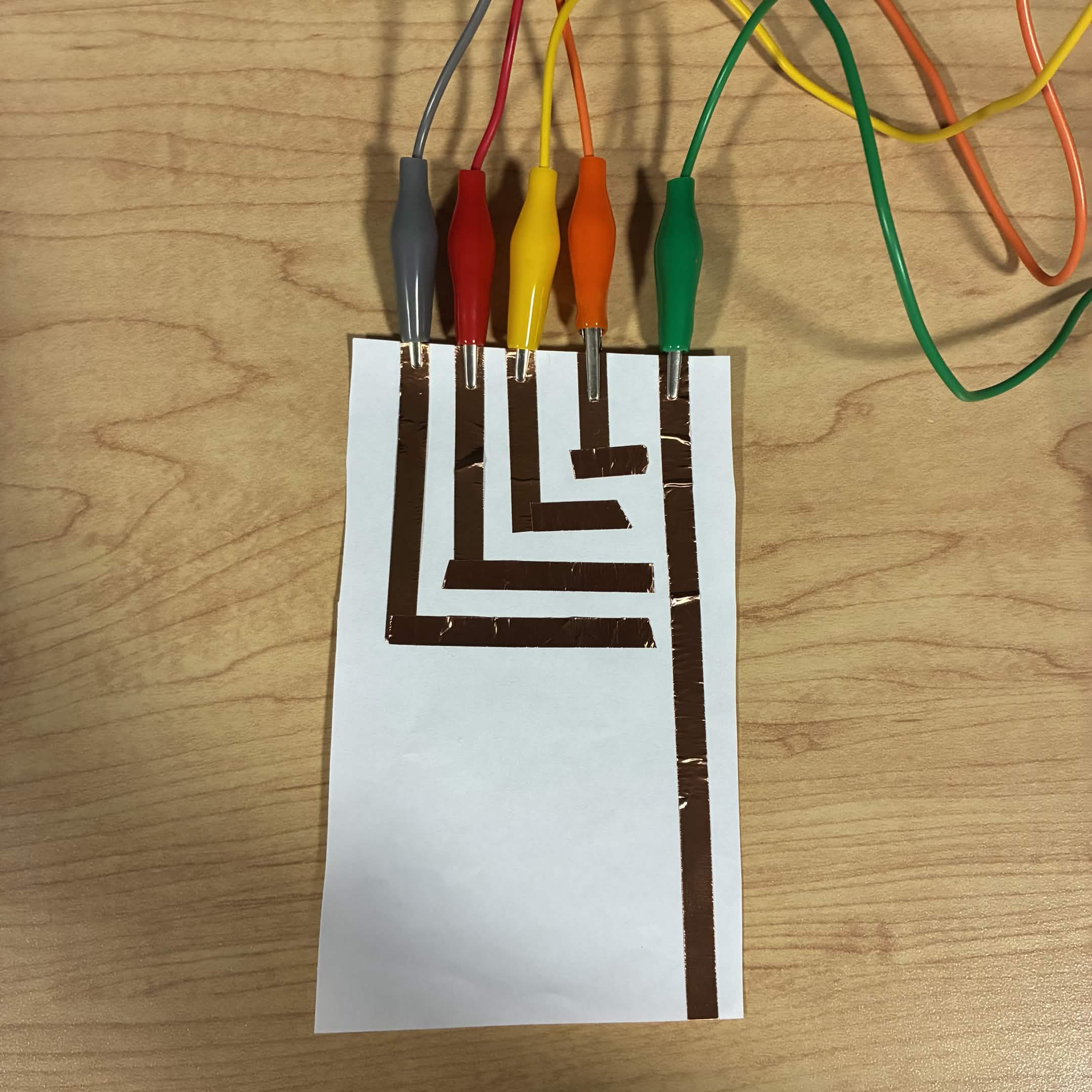
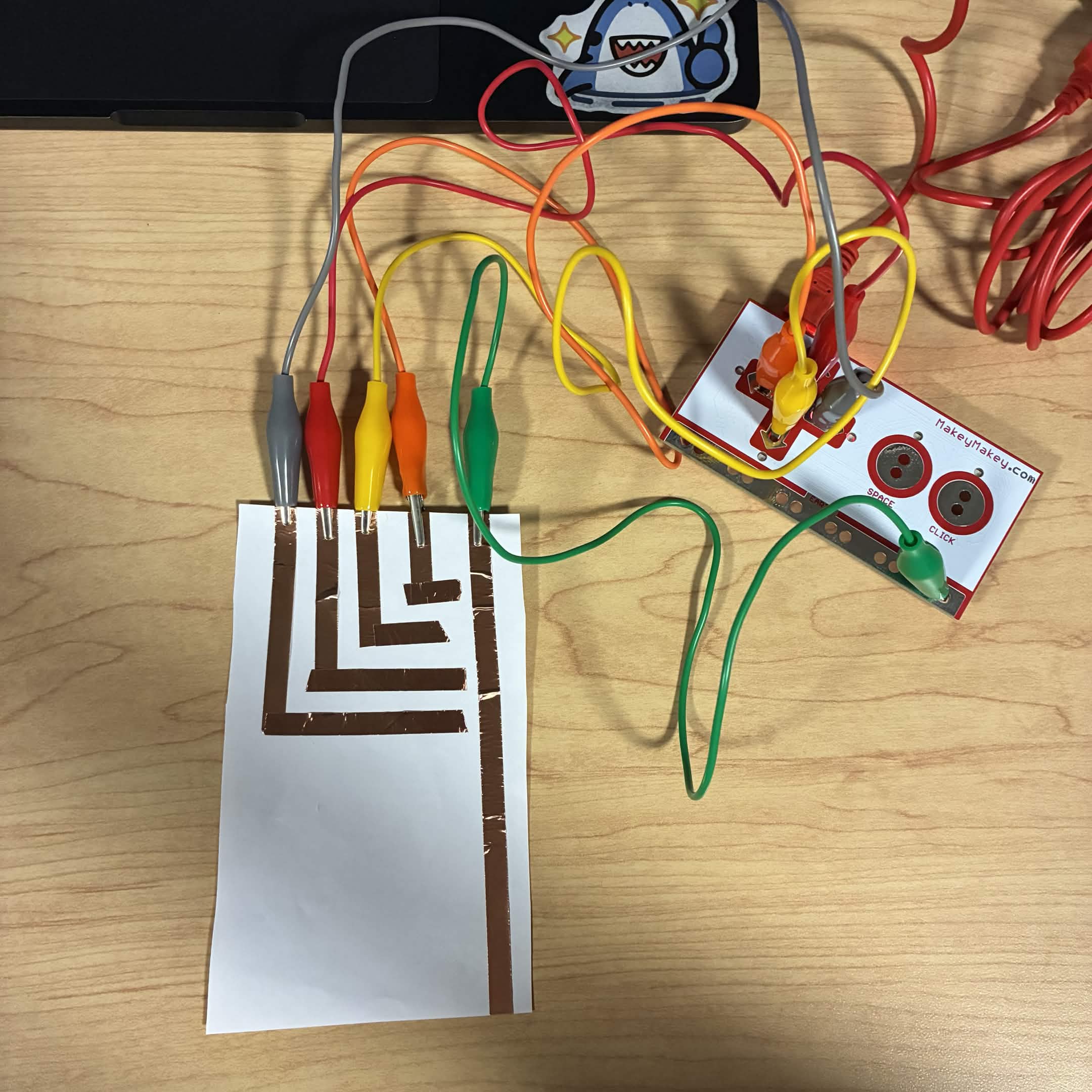
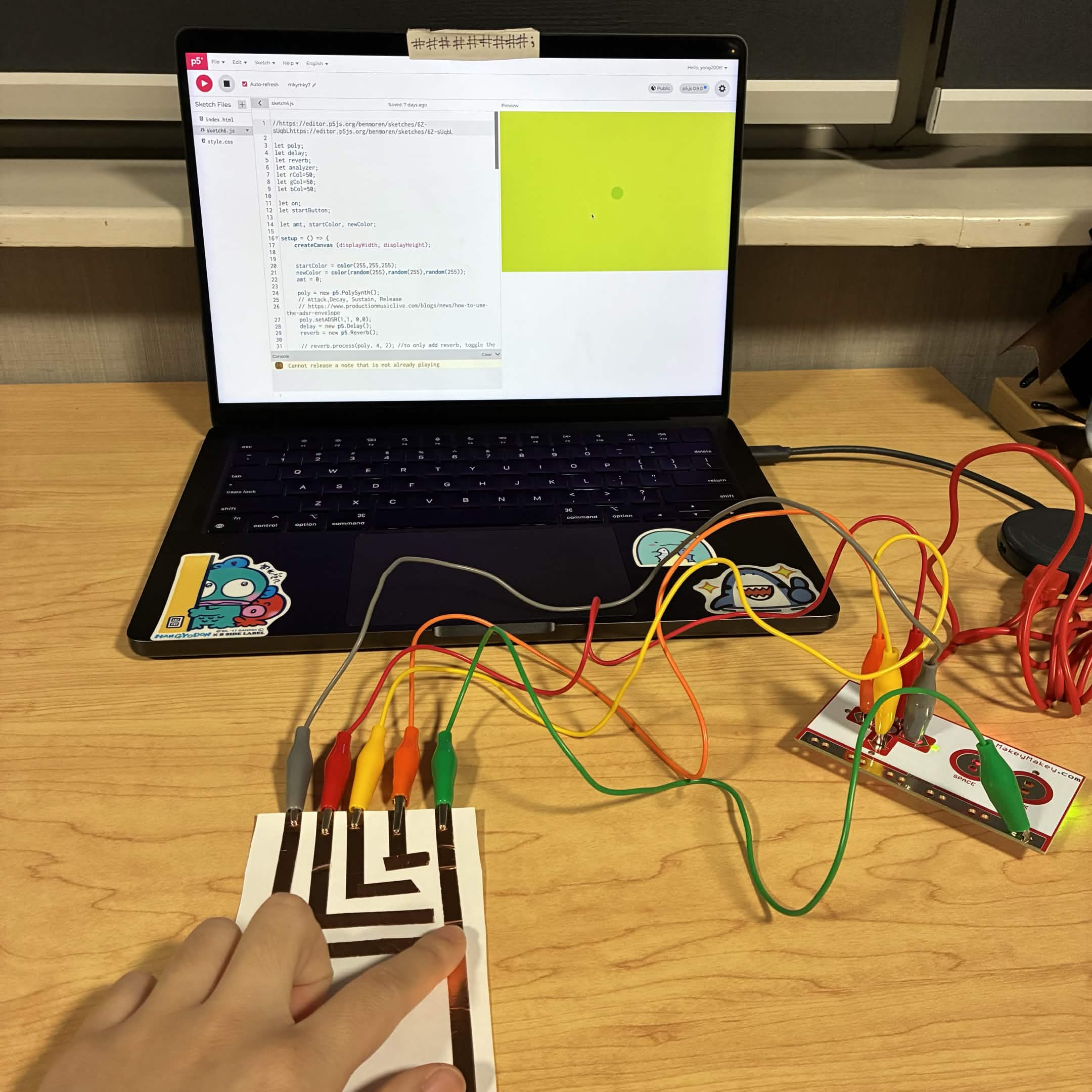
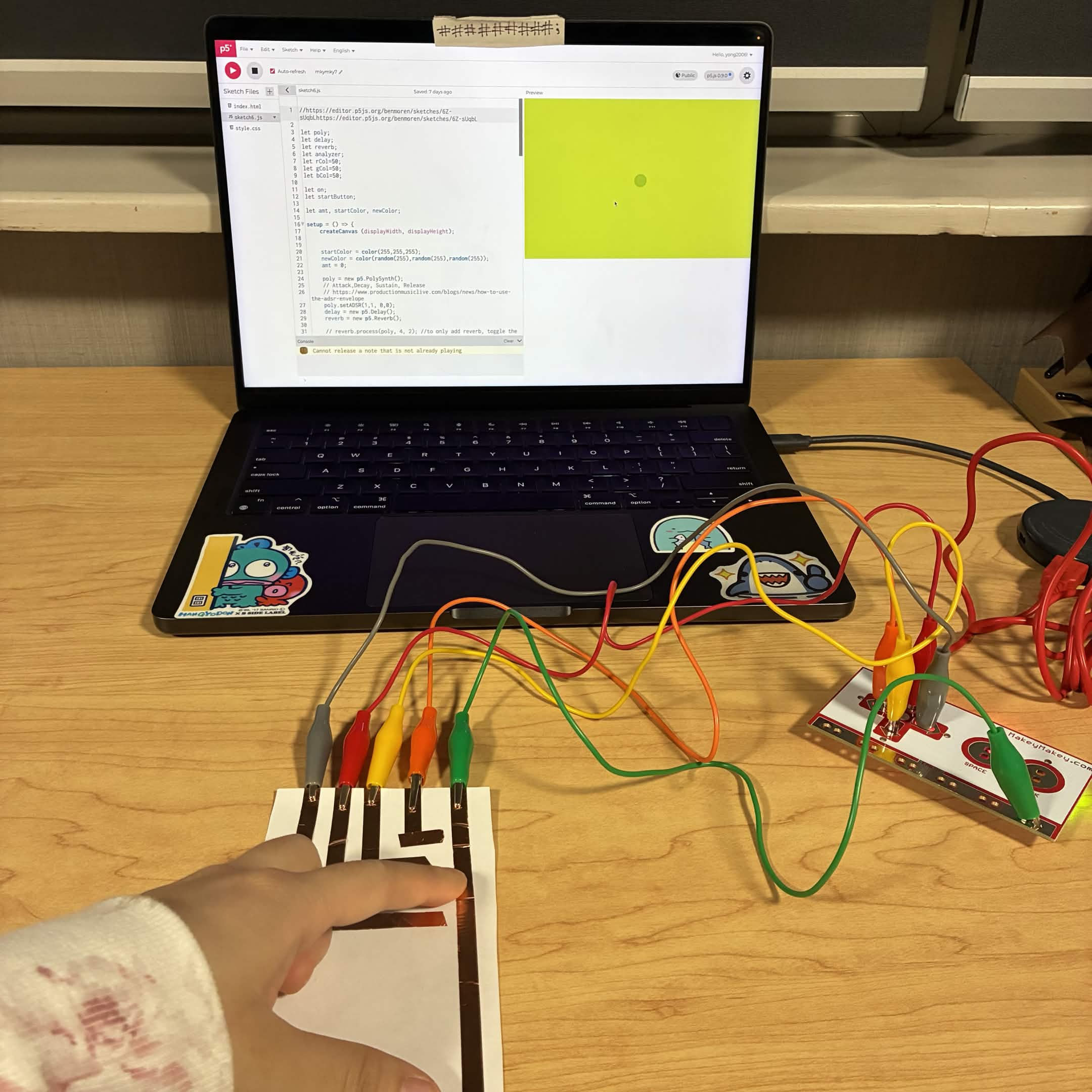
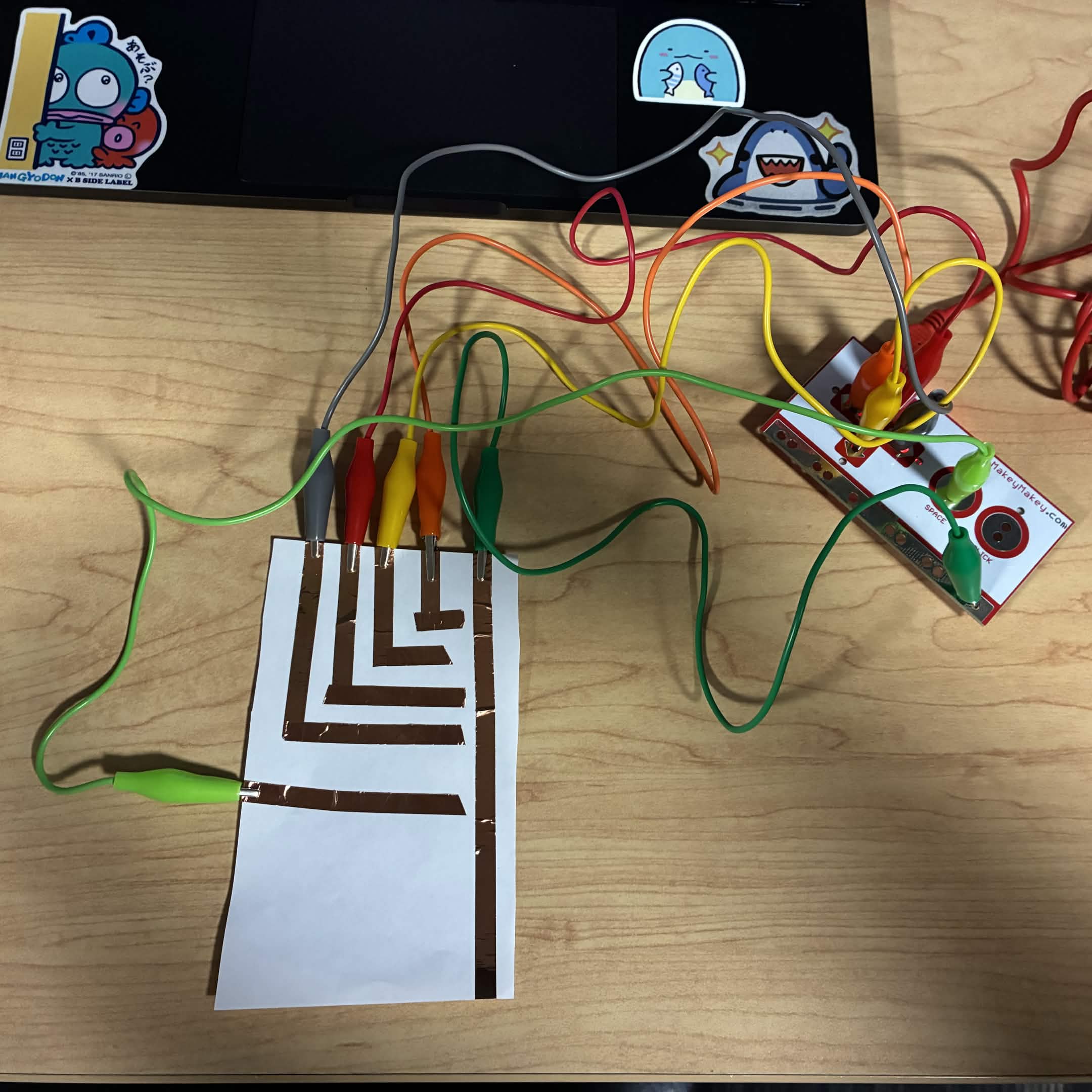
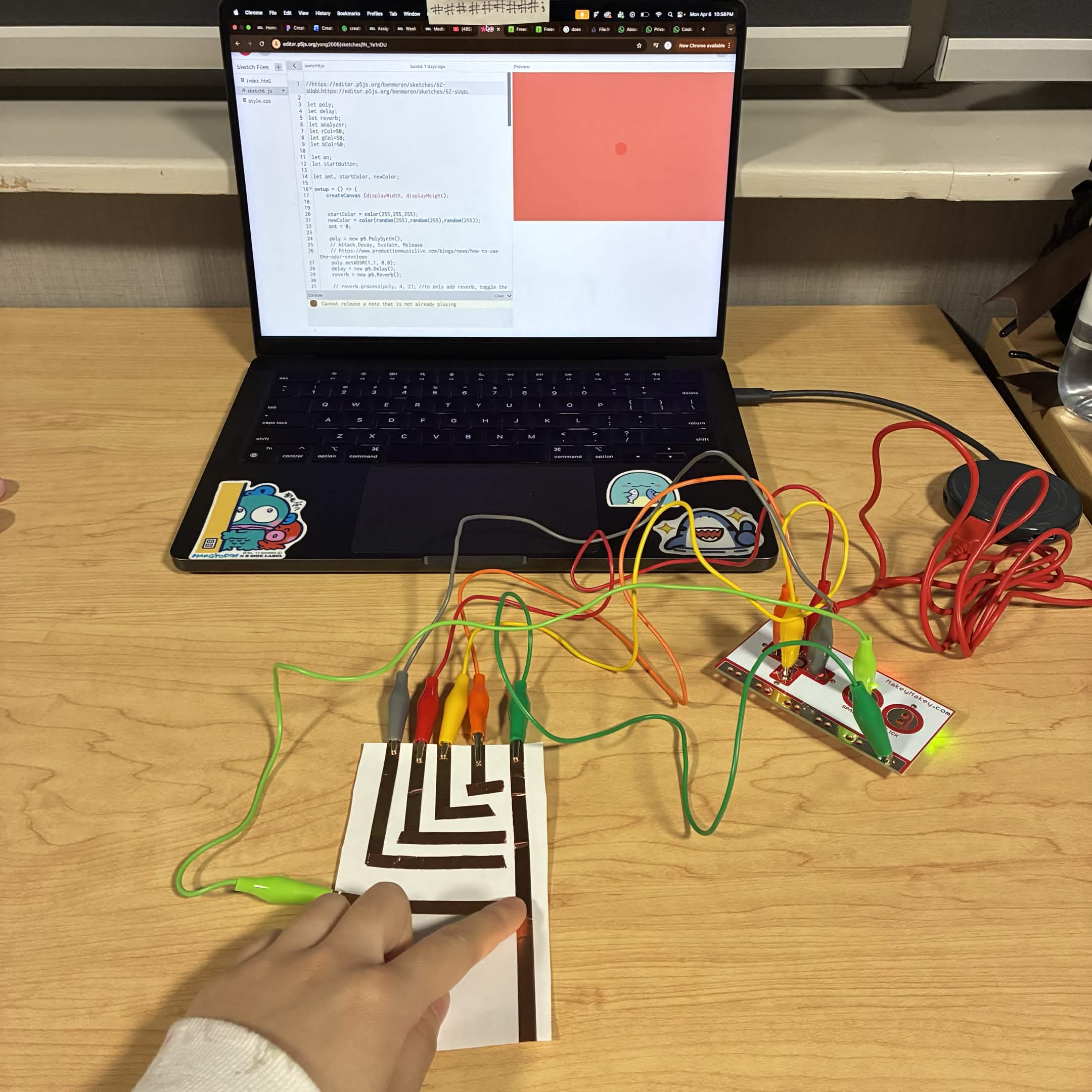
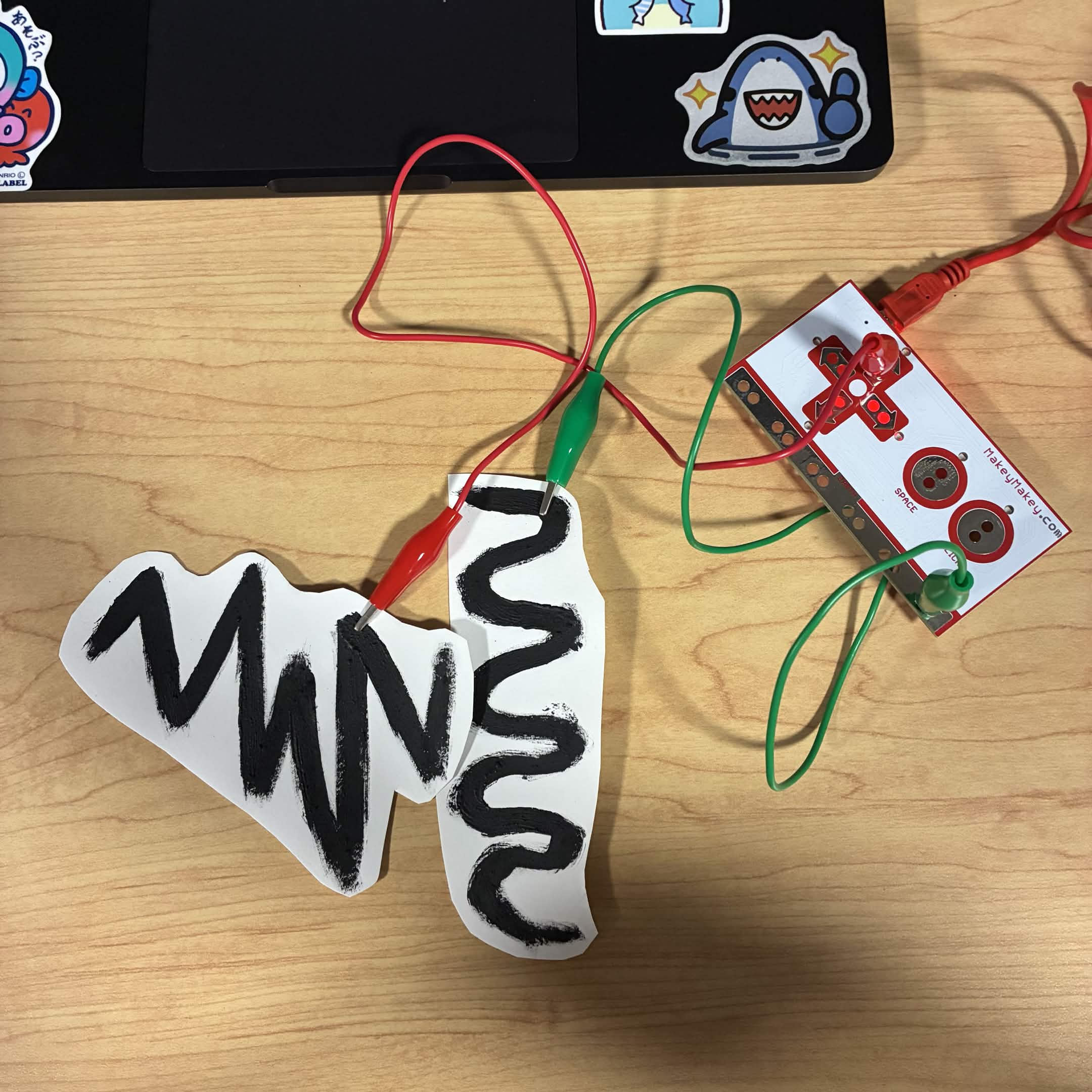
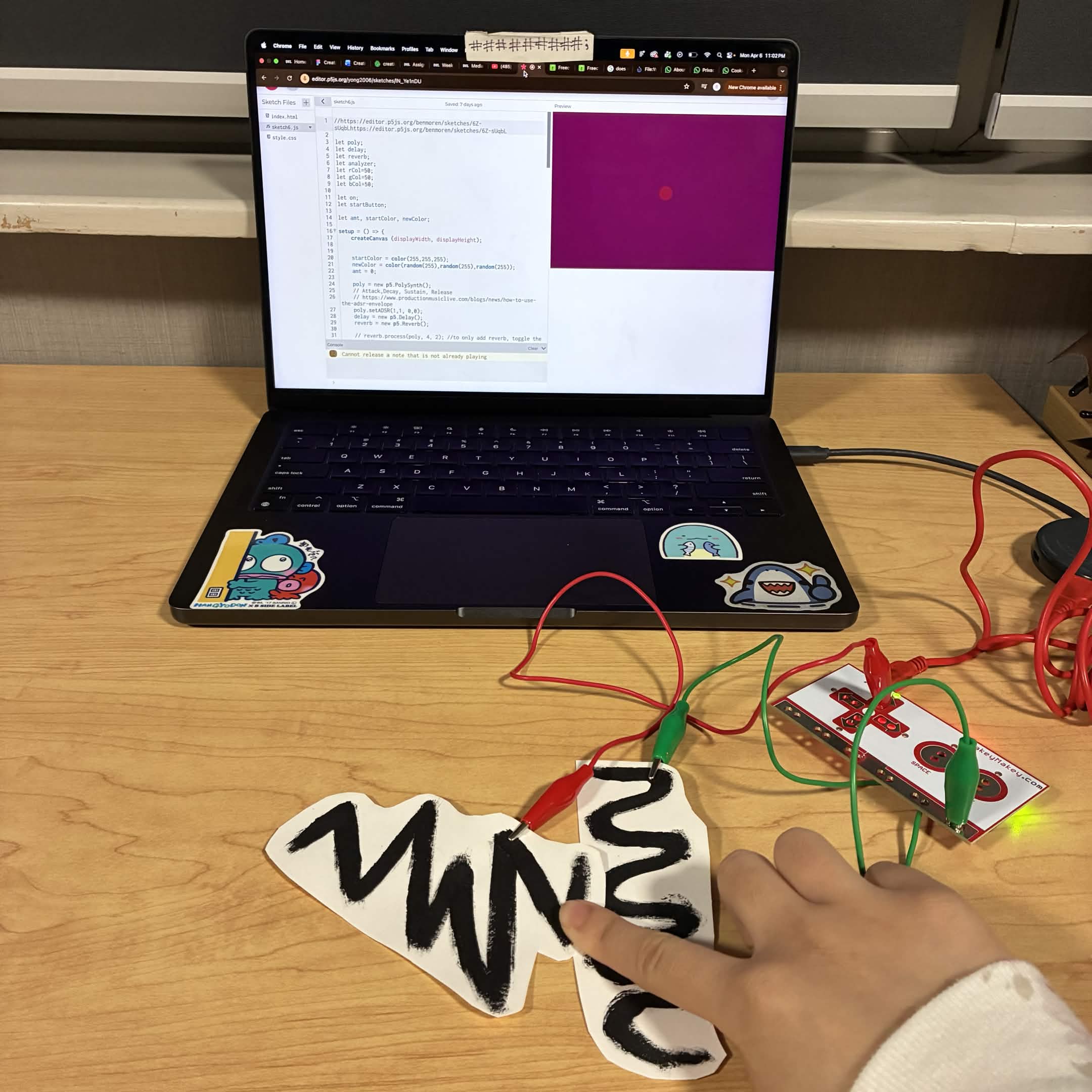
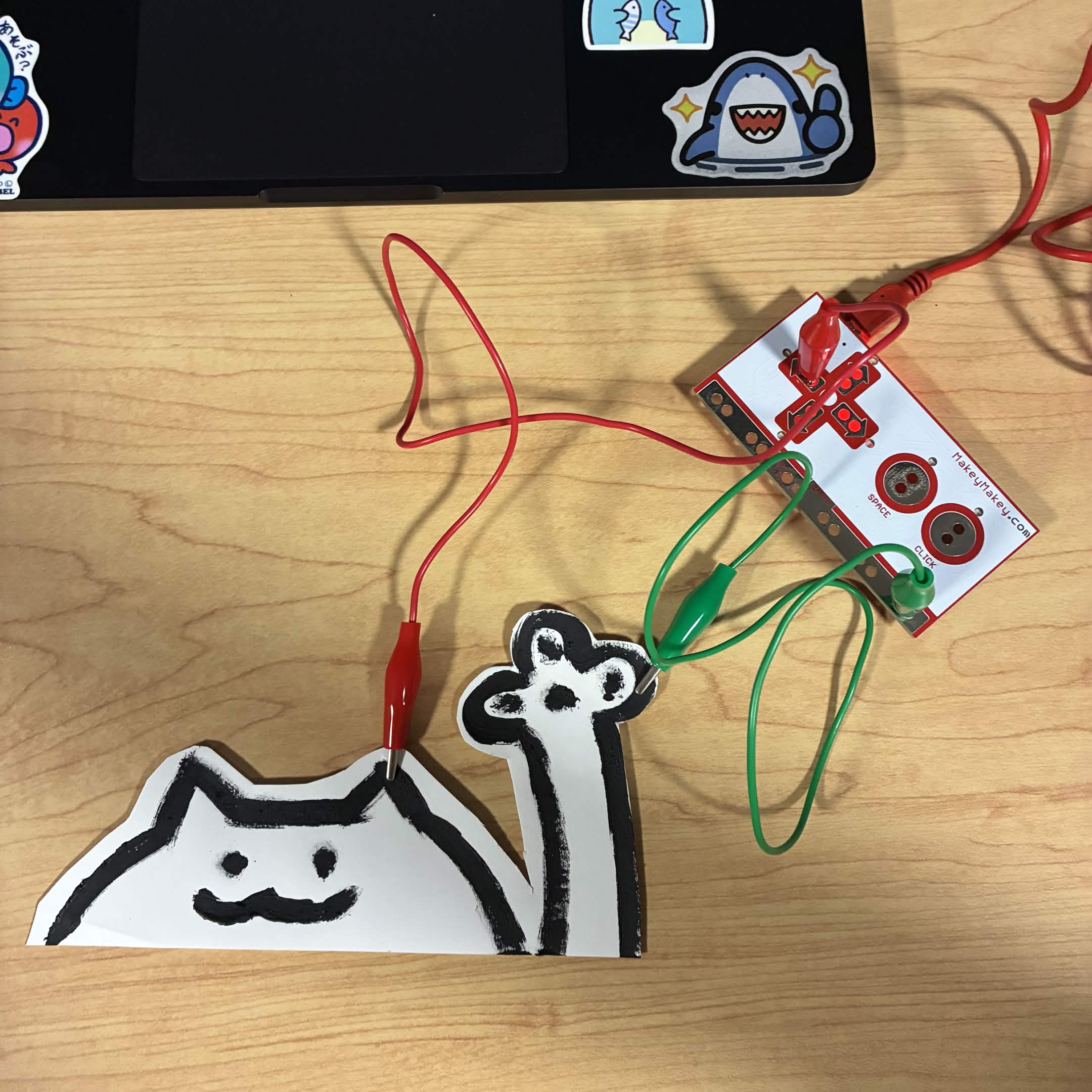
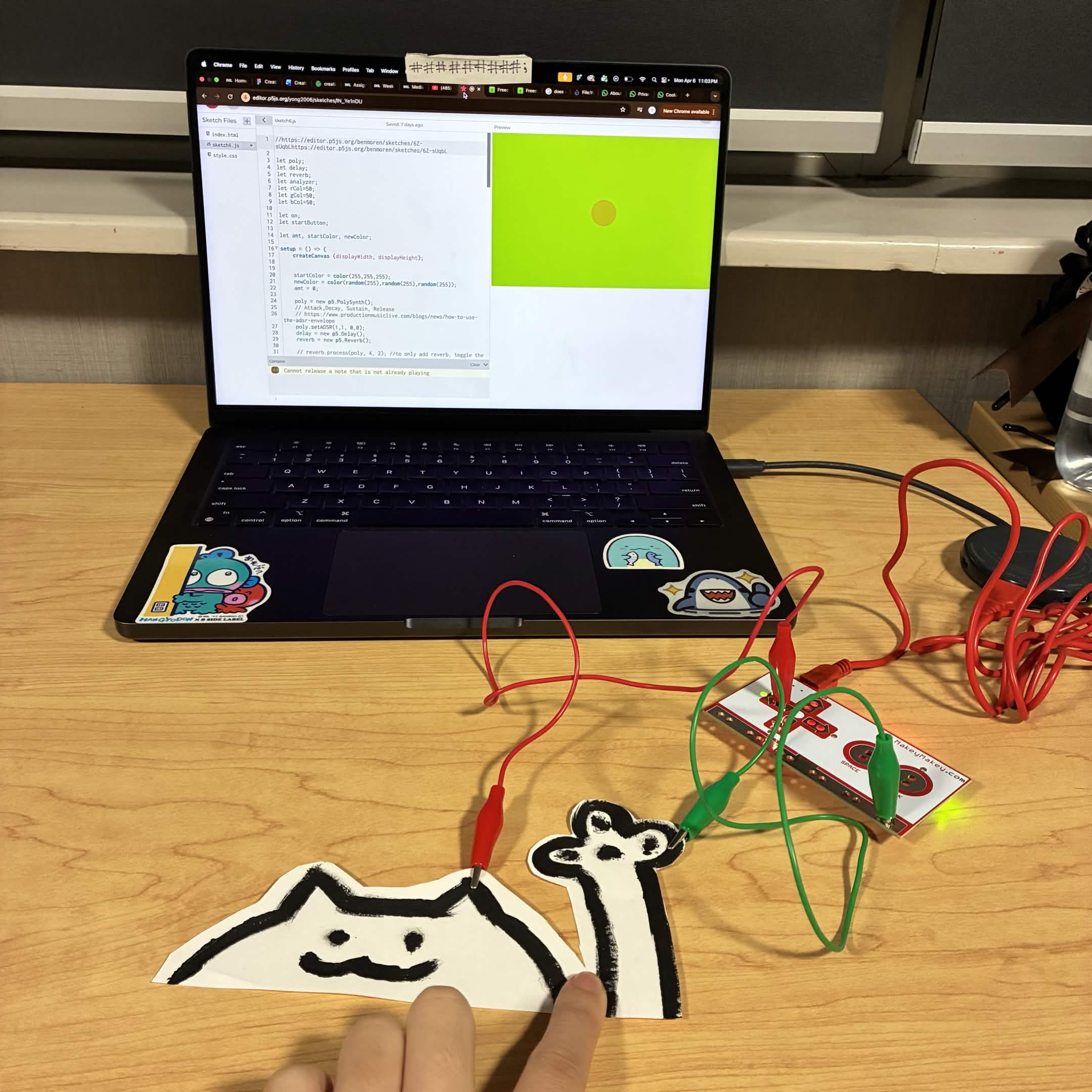
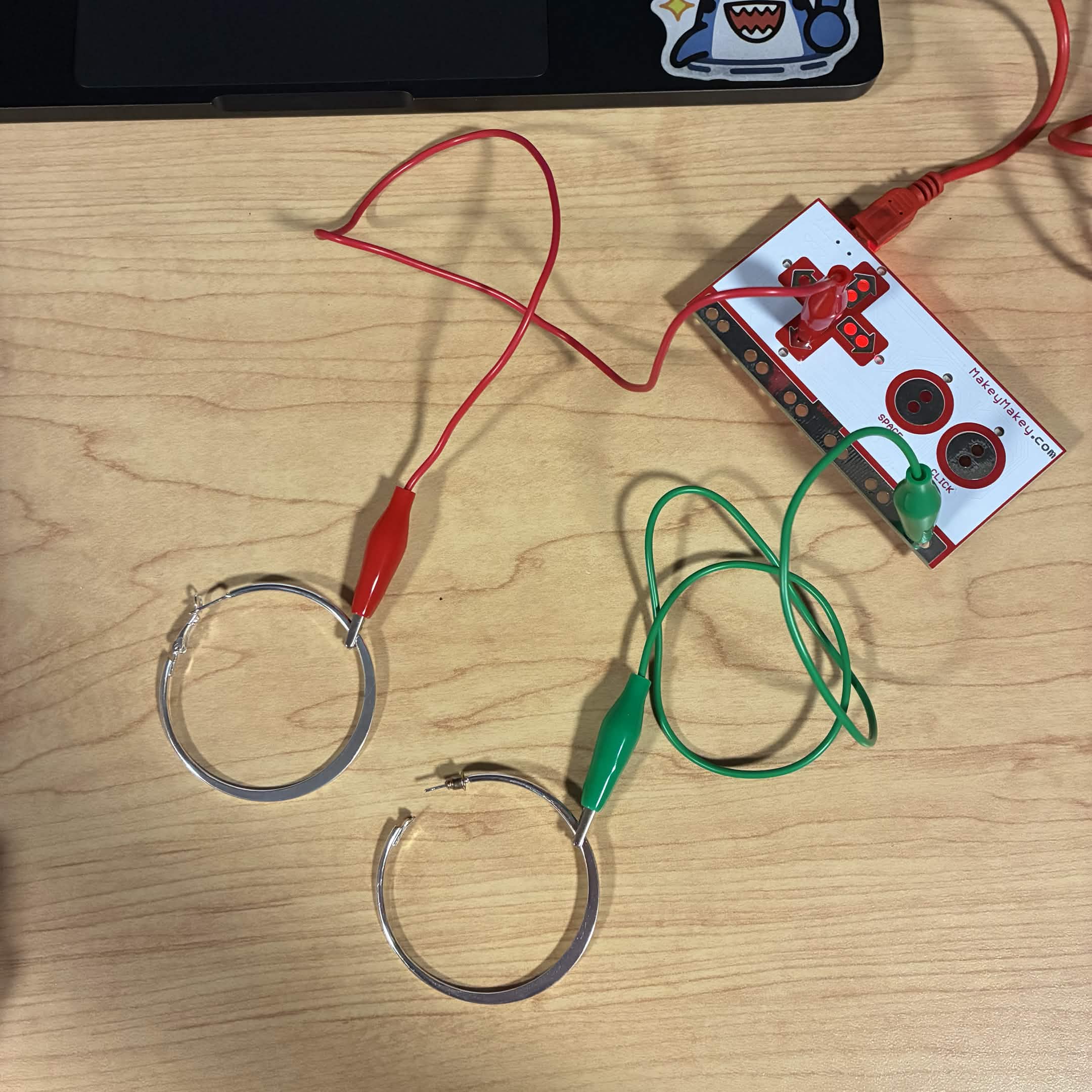
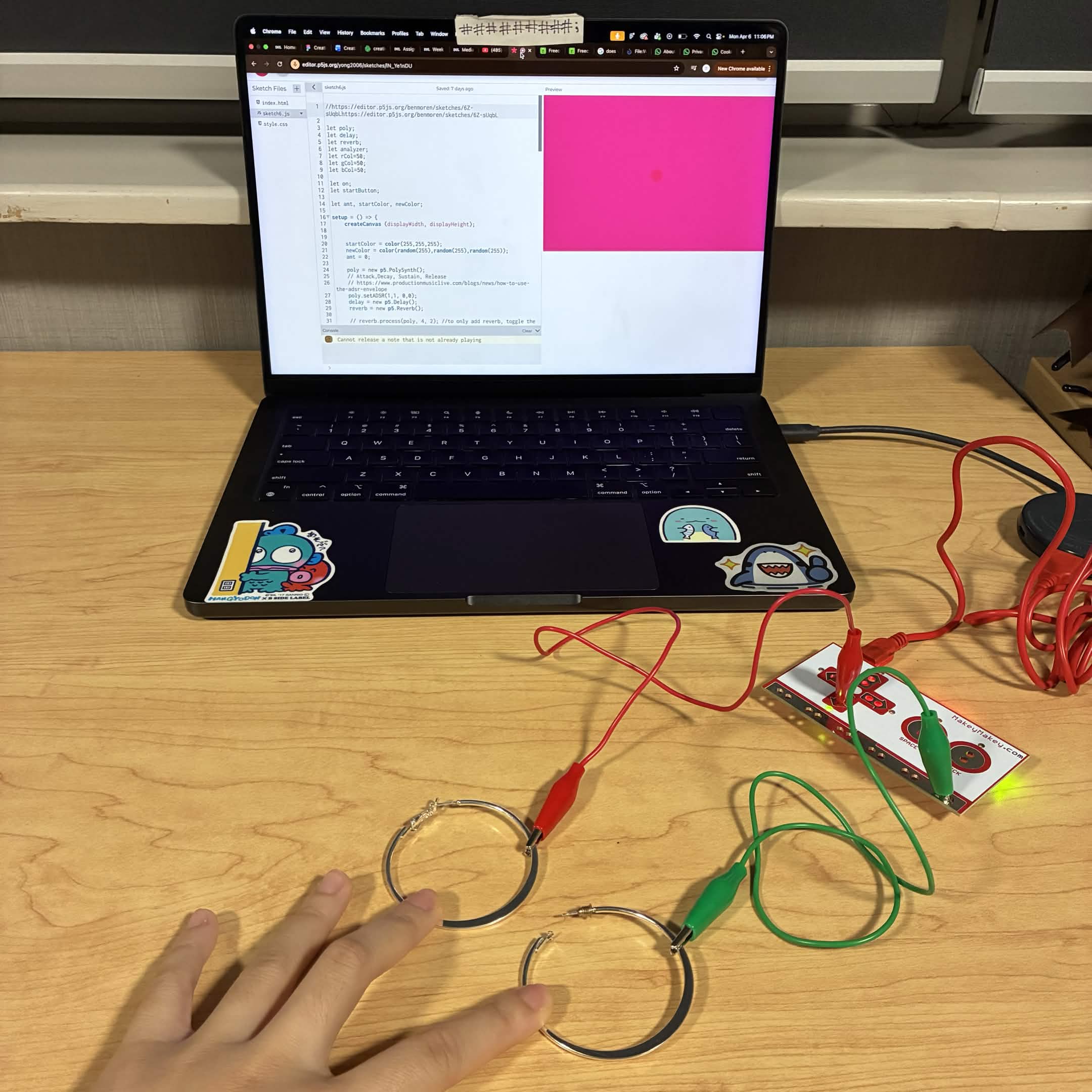
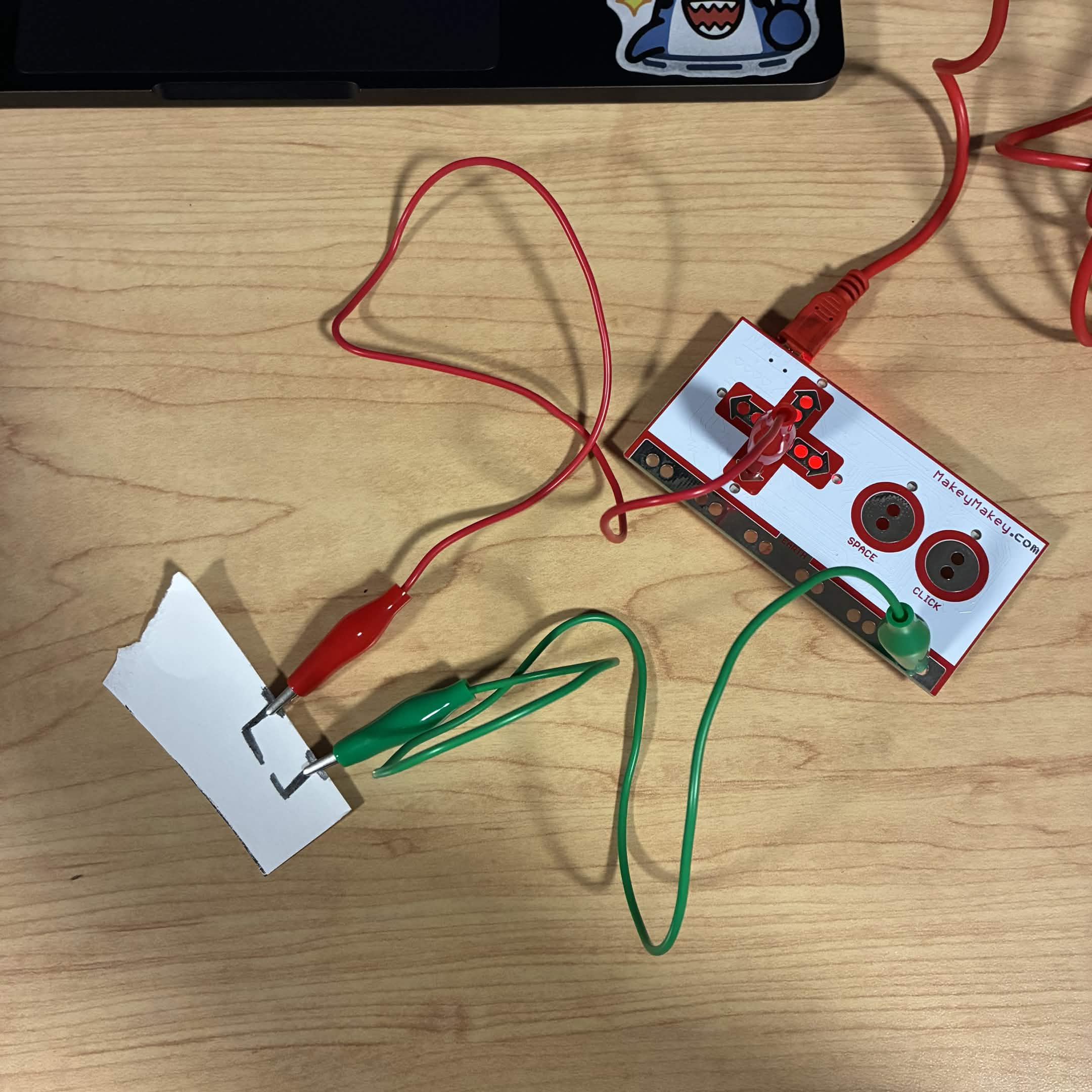
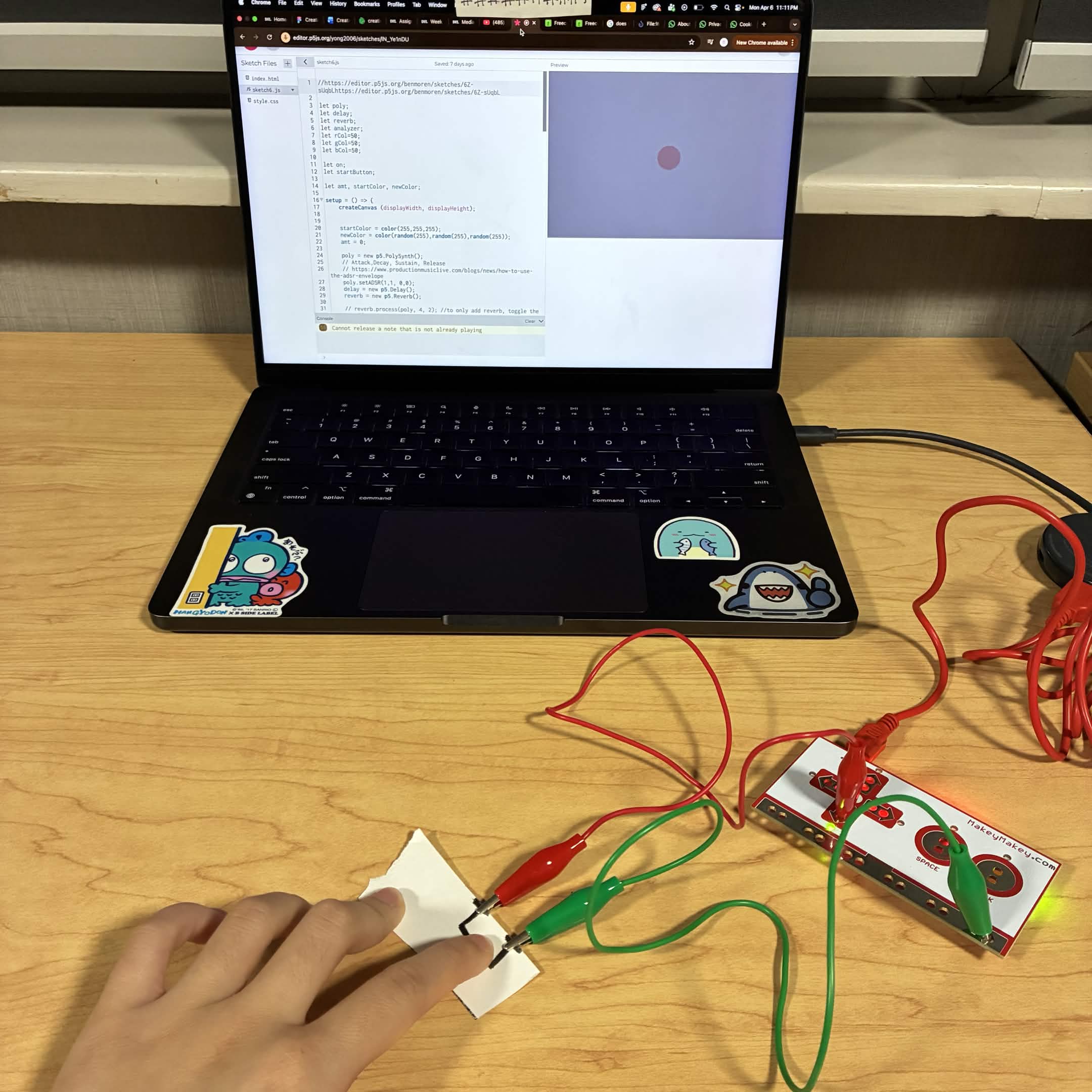
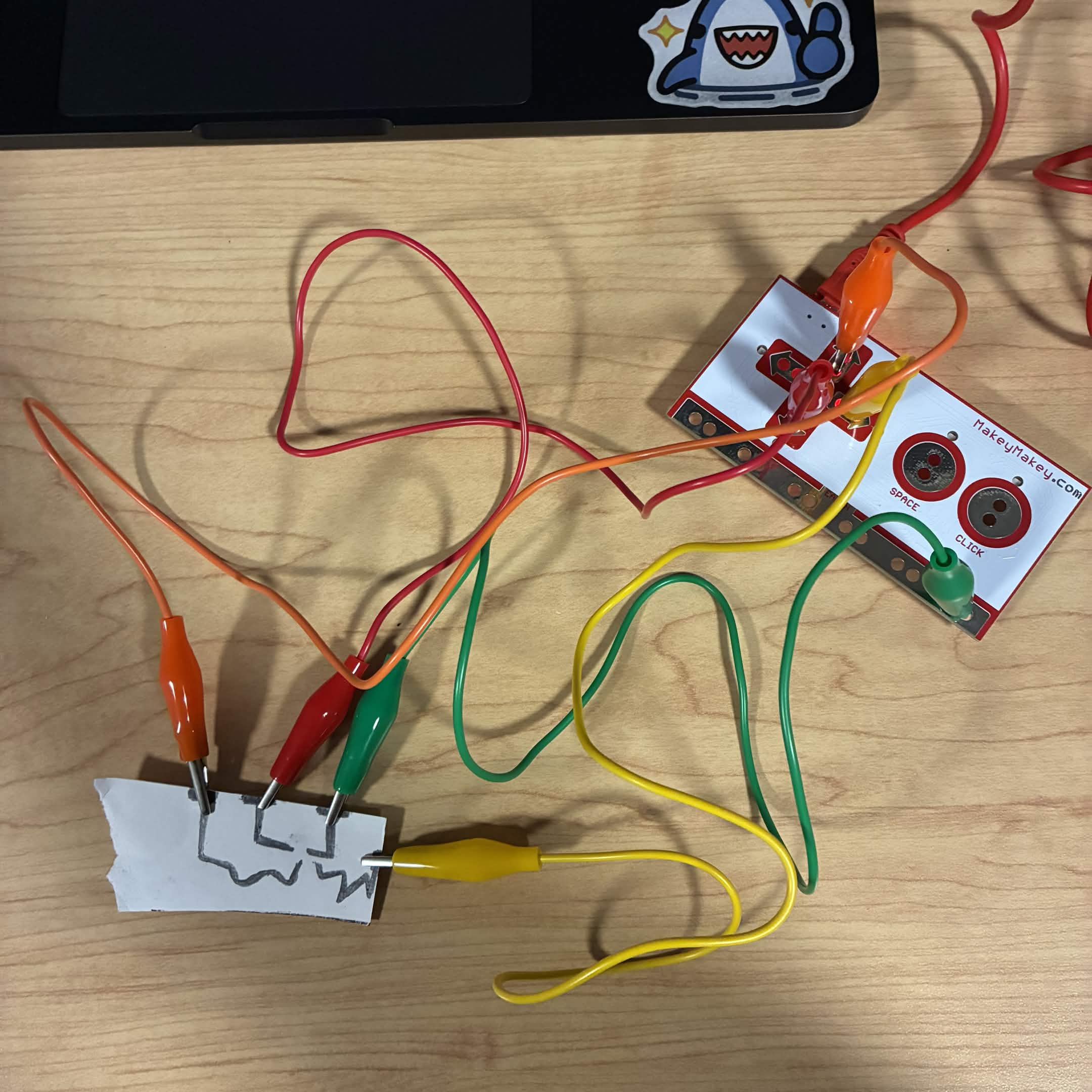
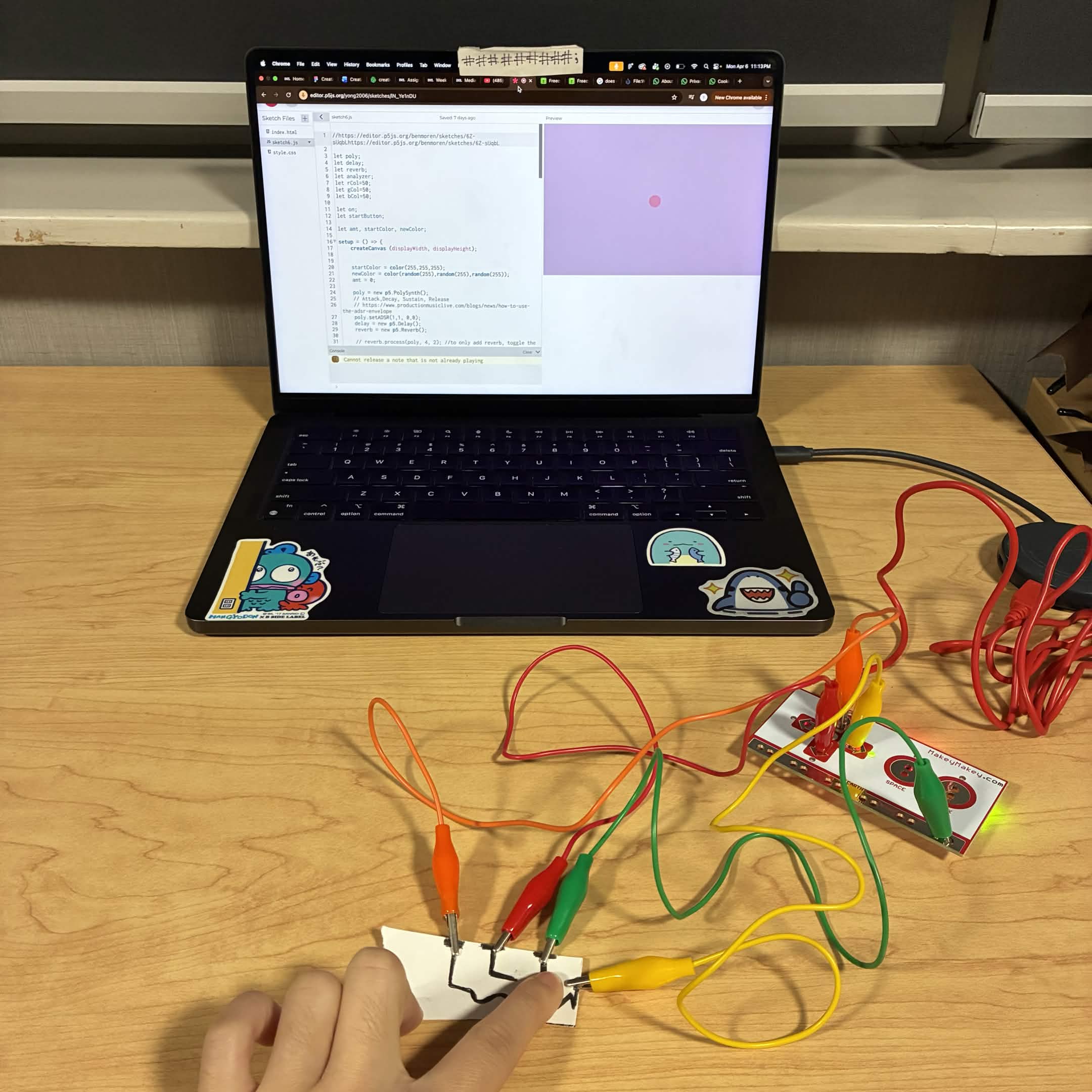
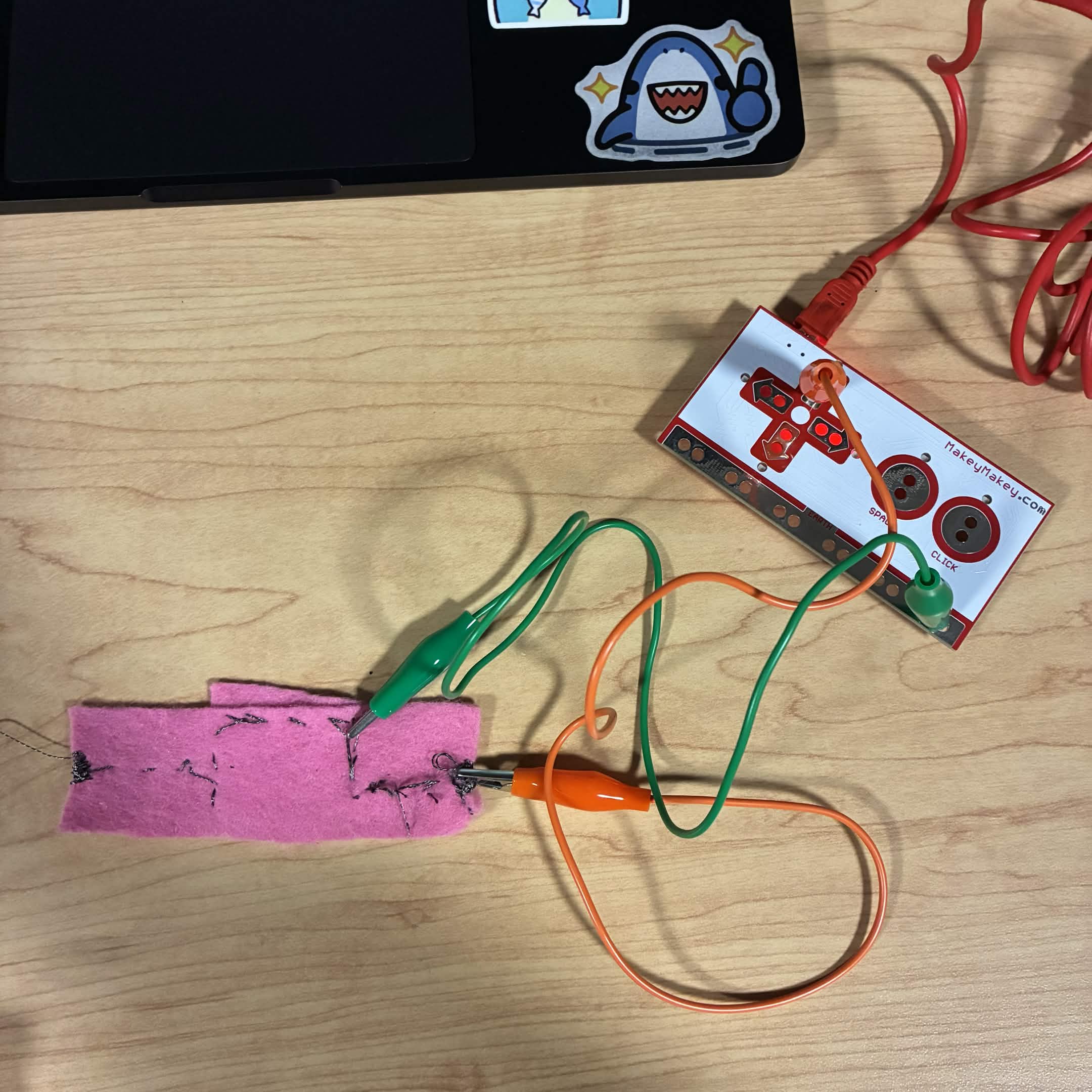
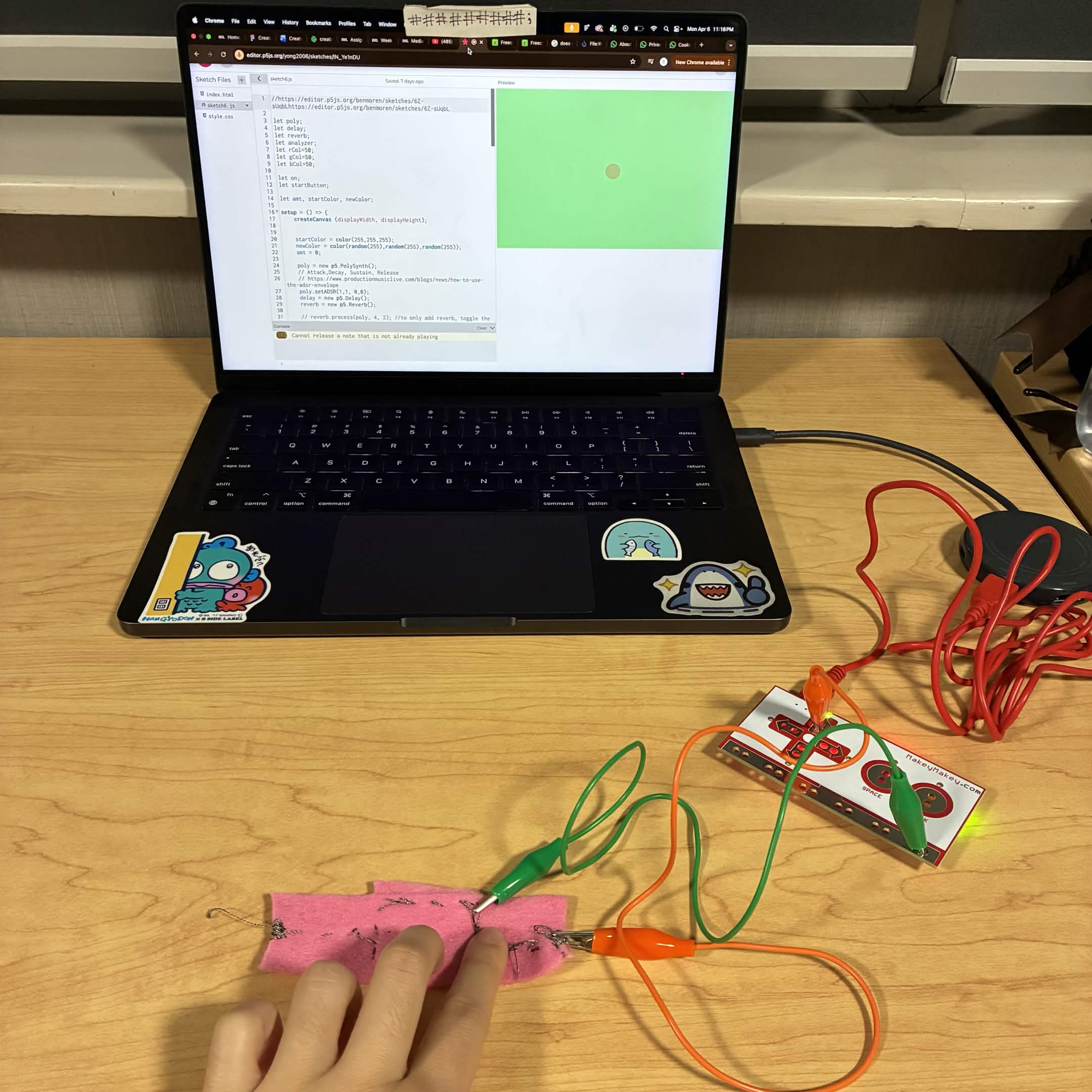
The paintings I made in class with conductive paint for this activity. I followed Steve's tutorial and created a simple circuit to connect a physical component with the Makey Makey. I'm using the seventh sketch from the first activity to test how different circuits function. This is what the sketch looks like when I would not complete the circuit with my finger. I'm using the seventh sketch from the first activity to test how different circuits function. This is a close up of what the simple circuit looks like.The green wire is connected to the ground and the orange wire is connected to the down button. I started to add more circuits and connect them to different buttons on the Makey Makey.The yellow wire is connected to the down button, the orange wire is connected to the left button, and green is connected to ground. This is me connecting the down button circuit with my finger and how the p5js code reacts. This is me connecting the left button circuit with my finger and how the p5js code reacts. I added enough circuits to connect to all the arrows on the Makey Makey. The yellow wire is connected to the down button, the orange wire is connected to the left button, the red wire is connected to the up button, the grey wire is connected to the right button and green is connected to ground. Shows all the wires and circuits and where they connect onto the Makey Makey. This is me connecting the circuit for the right button and seeing how the code reacts. This is me connecting the circuit for the up button and seeing how the code reacts. I added an extra circuit and connected it to the space button with the light green alligator clip wire. This is me connecting the circuit for the space button and seeing how the code reacts. I cut out the lines I made out of conductive paint and connected it to the Makey Makey. The green wire is connected to the ground and the red wire is connected to the up button. I overlapped the painted lines so I could connect the circuits using one finger. It worked successfully. I connected the cat and paw I made out of conductive paint. The green wire is connected to the ground and the red wire is connected to the up button. I connected the circuit using my finger and observed how the code reacted. I wanted to try a more unconventional item so I connected my silver hoop earrings to the Makey Makey. The green wire is connected to the ground and the red wire is connected to the down button. I had to use two fingers in order to connect the circuit and I observed how the code reacted to it. I drew a circuit with a 0.7 led mechnical pencil to see if the graphite would be conductive. The green wire is connected to the ground and the red wire is connected to the down button.  My test was successful and the graphite circuit was successful. I connected the circuit with my finger and I observed the code. I drew more circuits with a funkier shape. The green wire is connected to the ground and the red wire is connected to the down button, the orange wire is connected to the up button, and the yellow wire is connected to the right button. This was me connecting the yellow wire circuit with my finger and observing how the code reacts. I found the conductive thread that was stitched into felt from module 1. I connected my alligator clip wires to it to see if it would work. The green wire is connected to ground and the orange wire is connected to the up button. I connected the circuit with my finger and observed how the code reacted.

Project 3


Final Project 3 Design

I designed an educational artifact that teaches people about different types of human teeth and tips for brushing one’s teeth. Users can take a toothbrush and press it against specific teeth on the model to learn about what that tooth is called and brushing tips to ensure proper dental hygiene. I used voice synthesis as well so the information can be relayed through visuals or auditory interaction.

×

Powered by w3.css